Want to set up a wireless Conference Room?Try Now

What separates conference room TVs from home theater TVs? Unlike projectors, which are explicitly marketed for both uses (super bright for conference rooms, moderately bright for home theaters), the line between a conference room TV and a home theater TV is a bit blurrier. As a general rule, if a TV works well in the home, it should also work well in the conference room. In most cases, any $700 TV from Best Buy should be more than capable of handling all of your conference room needs.

That said, some TVs work better in the conference room than others. Models intended for commercial displays/digital signage, for instance, are generally of a higher quality and come with more features than models intended for home theaters, and there’s no rule that says these models can only be used in shopping plazas or subway walls. Companies that intend to elevate their conference rooms to the next level would be well-advised to explore these models, starting with the five 4K TVs included in this list.
4K conference room TV

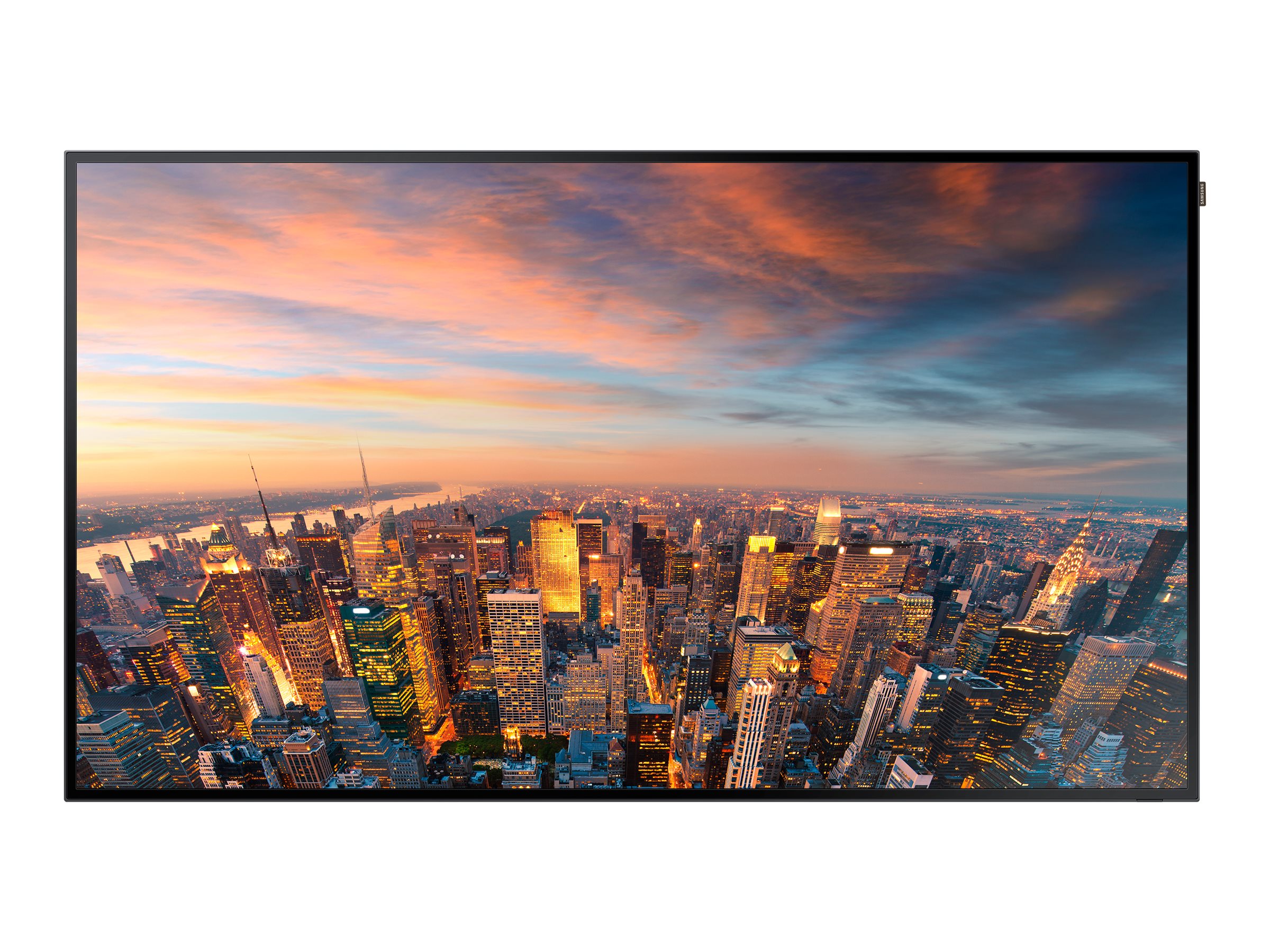
Samsung QM65F — QM-F Series 65″ Edge-Lit 4K UHD LED Display

Price: $5,105.99
Resolution: 3840 x 2160
Brightness: 500nit
Samsung’s QM65F comes with a non-glare panel and 500nits of brightness, so even if your conference room has curtain-free windows that overlook the rising sun, it should still be theoretically possible to see the screen.
lg_65ux340c_ux340c_commercial_lite_ultra_1170396 conference room TV


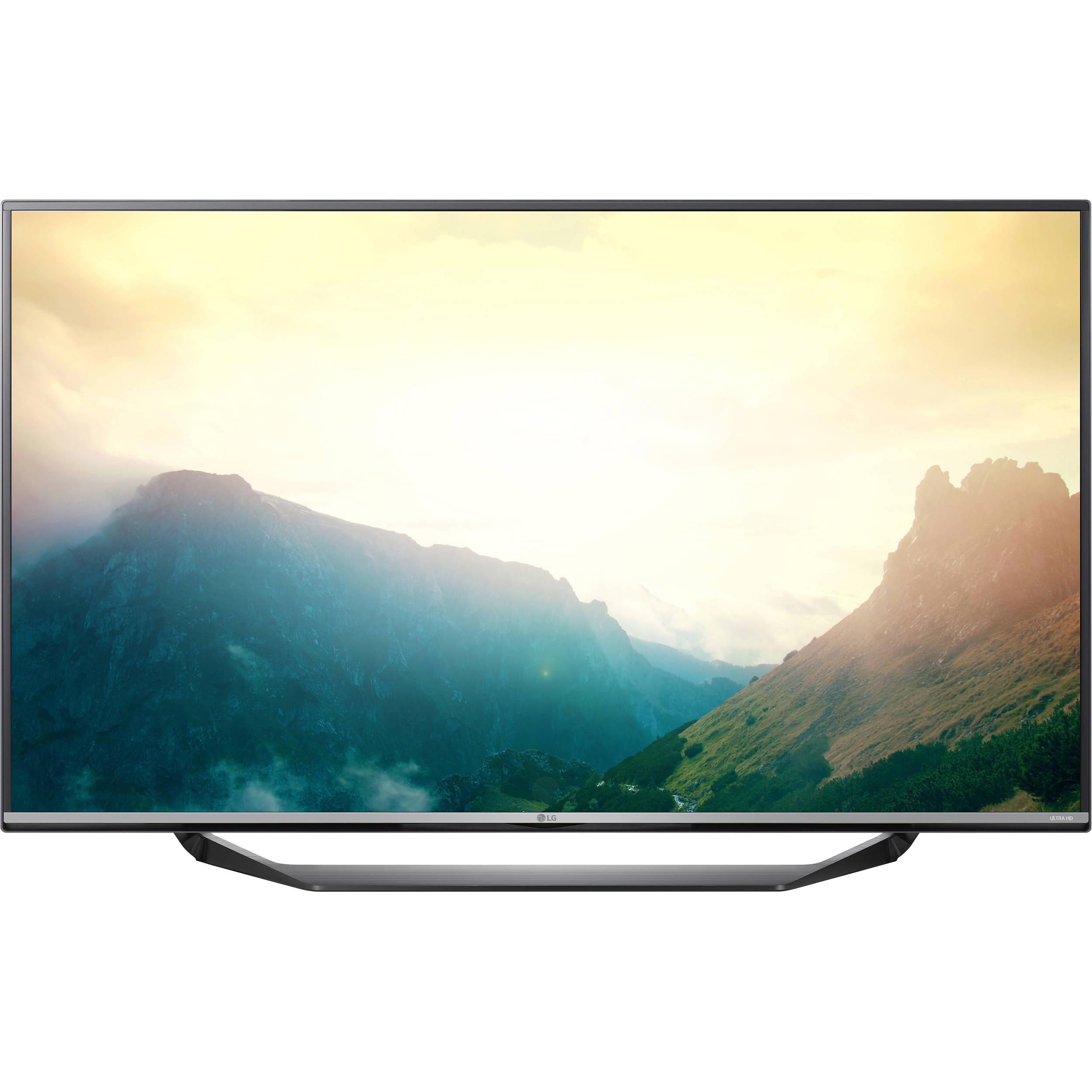
LG 65UX340C

Price: $2,544.00
Resolution: 3840 x 2160
Brightness: 400cd/m2
The LG 65UX340C has an IPS 4K panel which delivers true color from every conceivable viewing angle. If your conference room table is so large that only the people sitting in the middle will get a good head-on view of the TV, this is the 4K TV for you.
conference room TV

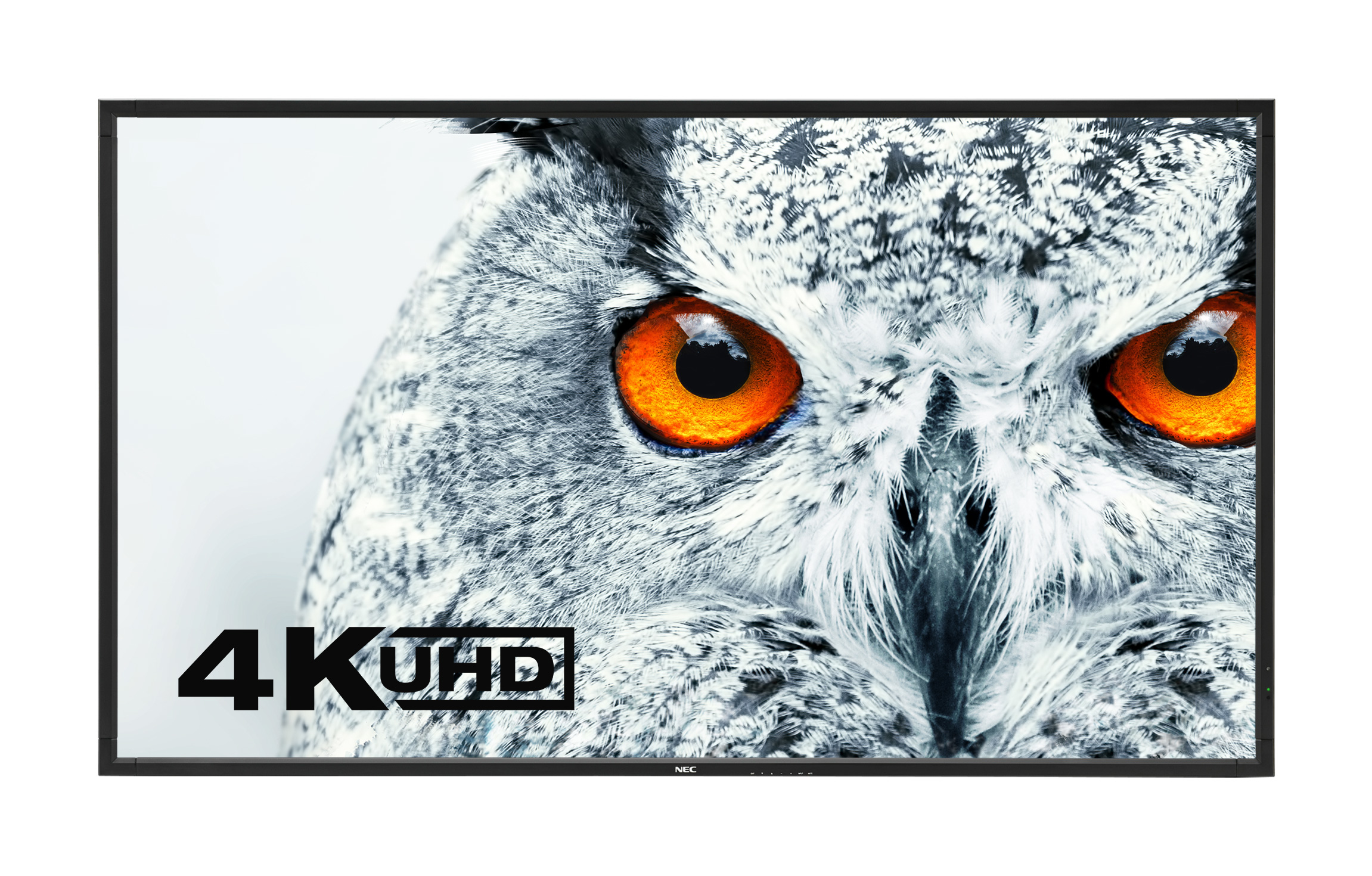
NEC 65″ X651UHD-2ED

Price: $5,999.00
Resolution: 3840 x 2160
Brightness: 450cd/m2
The main advantage that commercial display TVs have over their home theater counterparts is that they can remain on all day, seven days a week, without overheating. By introducing one into the conference room, you can (with the aid of, say, the Ubiq Hive) use your conference room display for digital signage when meetings aren’t in session.
When you think about it, there’s really no point in having a giant black rectangle in the center of your conference room wall when you can use that space to display the meeting room schedule, promotional images of your product, or anything else that you feel would be more compelling to look at than a black screen.

conference room TV

Panasonic TH-84EF1 84”

Price: $13,923.51
Resolution: 3840 x 2160
Brightness: 500cd/m2
If the above screens are too small, Panasonic will give you an extra 19 inches for more than double the price.
conference room TV
 

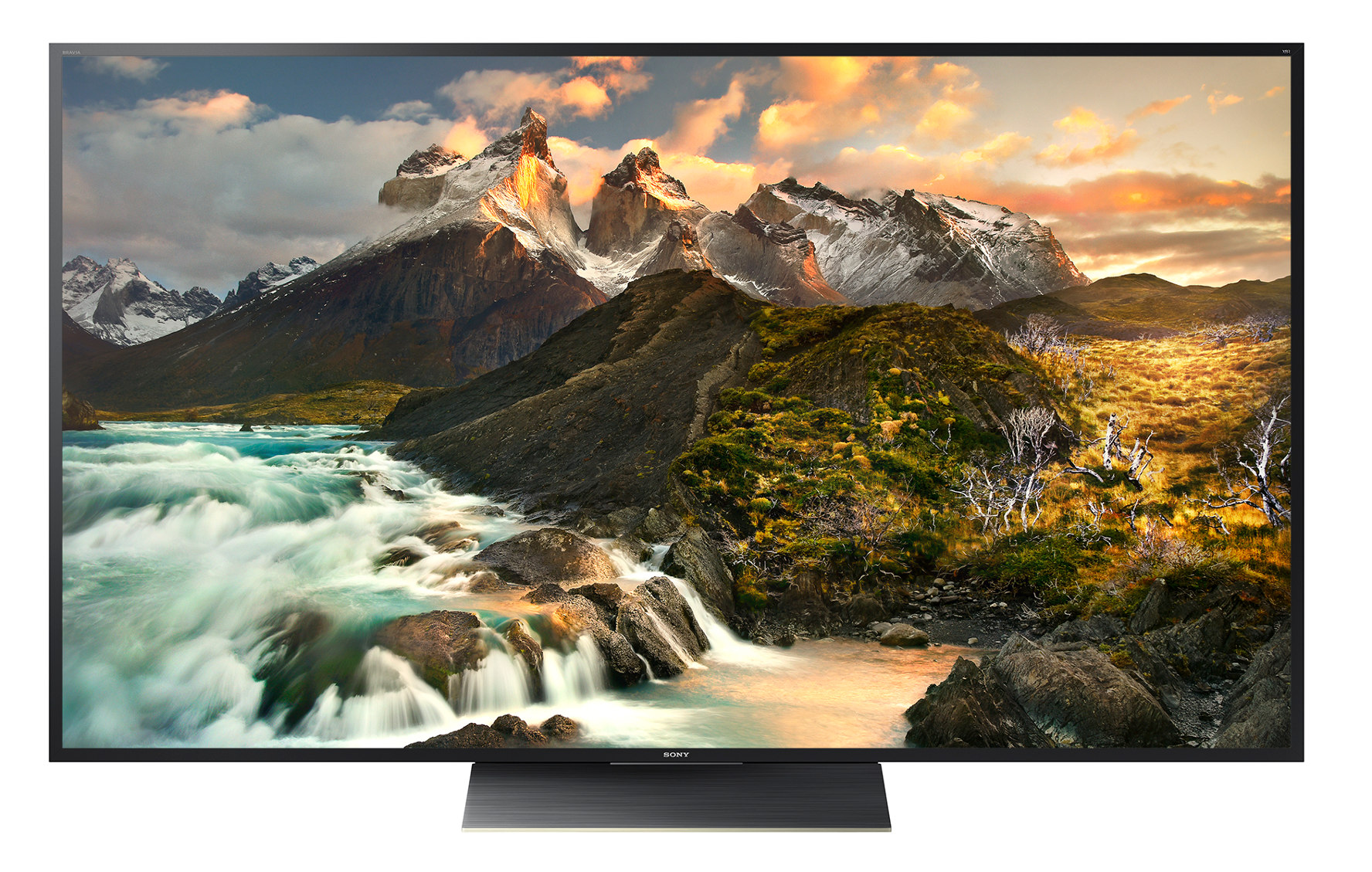
Sony FWD100Z9D 100″

Price: $64,199.99
Resolution: 3840 x 2160
Brightness: N/A
If the 84 inch Panasonic model isn’t big enough, Sony will give you 100 inches for the price of a BMW. Companies that require a screen this size may want to look into purchasing a projector. Even if end users leave it on all night so that you have to replace the bulb every week, the cost savings will still be enormous.
ADDITIONAL READING
5 Must-Have AV Products For Your Conference Room
Wireless Screen Sharing Vs. Conference Table Cable Management
Conference Room Design: 10 Examples Worth Studying
 

Want to set up a wireless Conference Room?Try Now

To share your laptop screen with a room full of people, you basically have three options: 1) hook your laptop up to a TV or projector using an HDMI, VGA, DVI, or Thunderbolt cable and/or adapter, 2) ask everyone in the room to awkwardly huddle around you, or 3) share your screen wirelessly.
The first option has been the go-to solution since the 90s and it works fairly well, except for one thing: In today’s BYOD environment, hooking a laptop up to a TV isn’t so easy. Laptops come with so many different outputs that you’ll need to have at least a dozen different cables on standby to accommodate them all. It should go without saying that a conference room with dozens of wires strewn across it is not only an eyesore, but due to the tripping hazards associated with cables, also a palm, elbow, and face sore as well.
Some businesses attempt to deal with this problem by hiring an AV installation company to drill wires through the conference room table and put cable management boxes and connectivity boxes at each seat.
In addition to being costly and time-consuming (an AV installation can leave your conference out of commission for several days), this solution is also a little near-sighted. Who’s to say what ports end users will need in 5 years? Thunderbolt 5? USB 7? HDMI 4? Will they even have ports at all? Companies that go this route may as well make “Conference Room Table Cable Management Expert” a full-time salaried position.
This is where the Ubiq Hive enters the picture. It only takes 5 minutes to set up and costs a fraction of an AV installation. All that’s required of the IT department is to: 1) Take the Hive out of the box, 2) Hook the Hive up to the TV or projector and to the company’s LAN, 3) Hold down on the power button.
When we say that it only takes 5 minutes to set up, there’s a good chance that we’re being overly cautious. The below video explains everything you need to know in just 57 seconds.

Once the device is up and running, your end users can begin presenting. For internal users, only one action is required—going to www.goubiq.com/downloads and downloading the app. This is a fairly self-explanatory task, but we made a quick video (27 seconds long) explaining how to do it anyway.

For guest users, the process is almost identical. The only difference is that guest users go to a different url (www.goubiq.com/guest) to download the app. The below video is basically the same as the one above, except we swapped in a different title card for the section where the url is displayed. We will not be offended if you decide to skip it.

(Alternatively, both guests and internal users can just use our browser-based solution at https://present.goubiq.com/).
Once the end users have connected their devices to the Hive, the IT department can monitor the Hive remotely through the Ubiq dashboard. To do this, go to https:dashboard.goubiq.com and login with the credentials that were sent to you in an email with the subject heading “Dashboard Credentials.”
The dashboard also comes with a bunch of other features that you can play around with. The two videos below will walk you through each of these features step by step.


In addition to solving all of your screen sharing issues, the Ubiq Hive will also solve all of your digital signage issues as well. If you want to optimize your conference room displays when meetings aren’t in session by showing videos, stills, or websites, the below video will show you how it’s done.

To book a free trial of our product, please click here.
ADDITIONAL READING
Conference Room Technology: 5 Investments You Should Make
Top 10 Conference Room Cable Management Fails of 2016
Meeting Room Setup in 1 Day

Want to set up a wireless Conference Room?Try Now

Unlike climbing Mount Everest, which some 80-year-olds have done without difficulty, conference room cable management is not something which should be undertaken lightly. Not only does it require an enormous amount of equipment and an unlimited supply of free time, it also requires the soul of an artist, the unswerving dedication of a marathon runner, and a mind for strategy comparable to that of your average chess grandmaster.
While most people who attempt conference room cable management fail spectacularly, some fail more spectacularly than others. Here are 10 conference room cable management fails that reach the absolute apex of faildom.

1. Multiple Cables at Every Seat With No Connectivity Box

Conference Room Cable Management Fail

2. So Many Cables Along Baseboard that Baseboard No Longer Visible

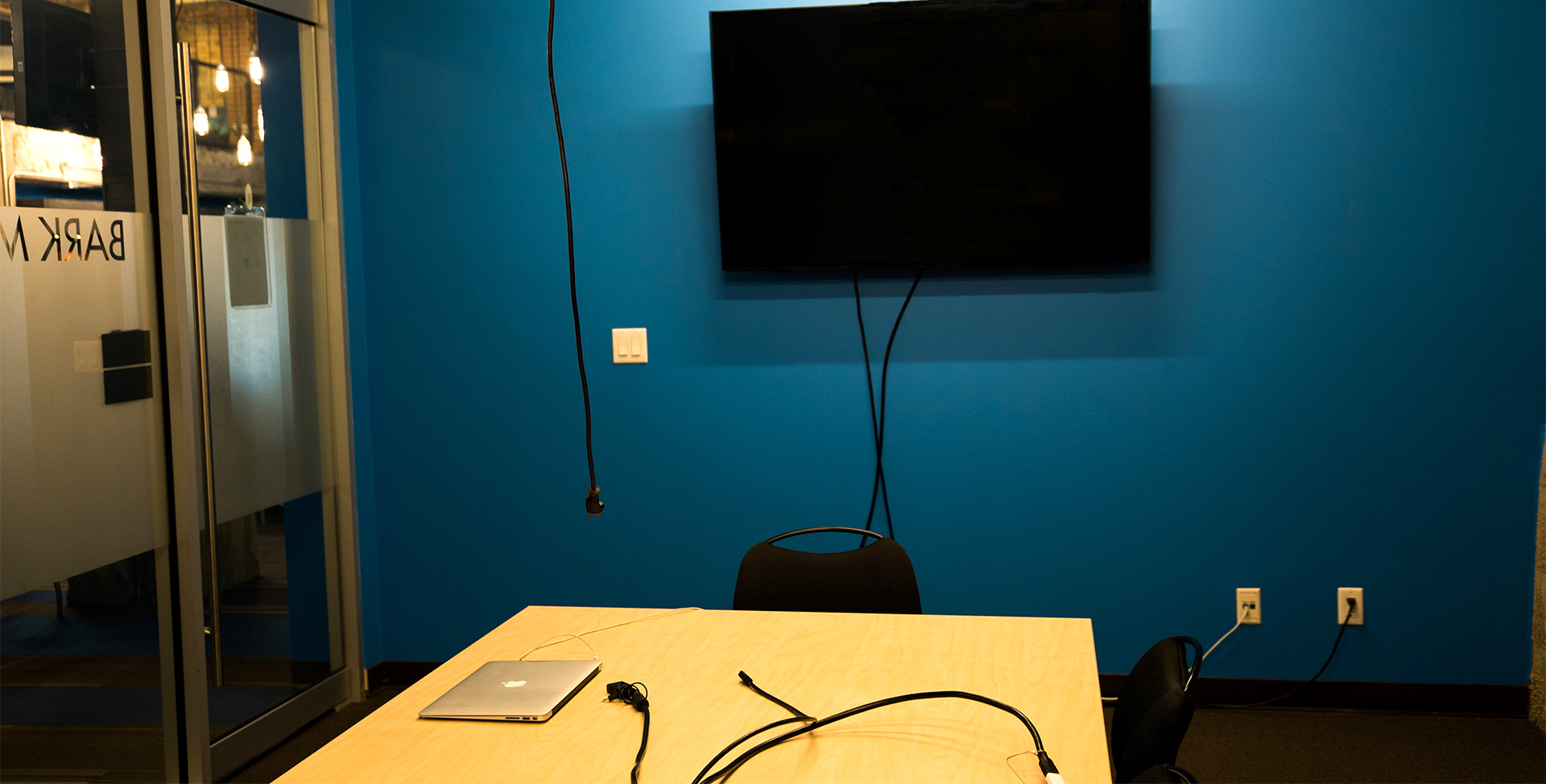
3. Cable Dangles From Ceiling

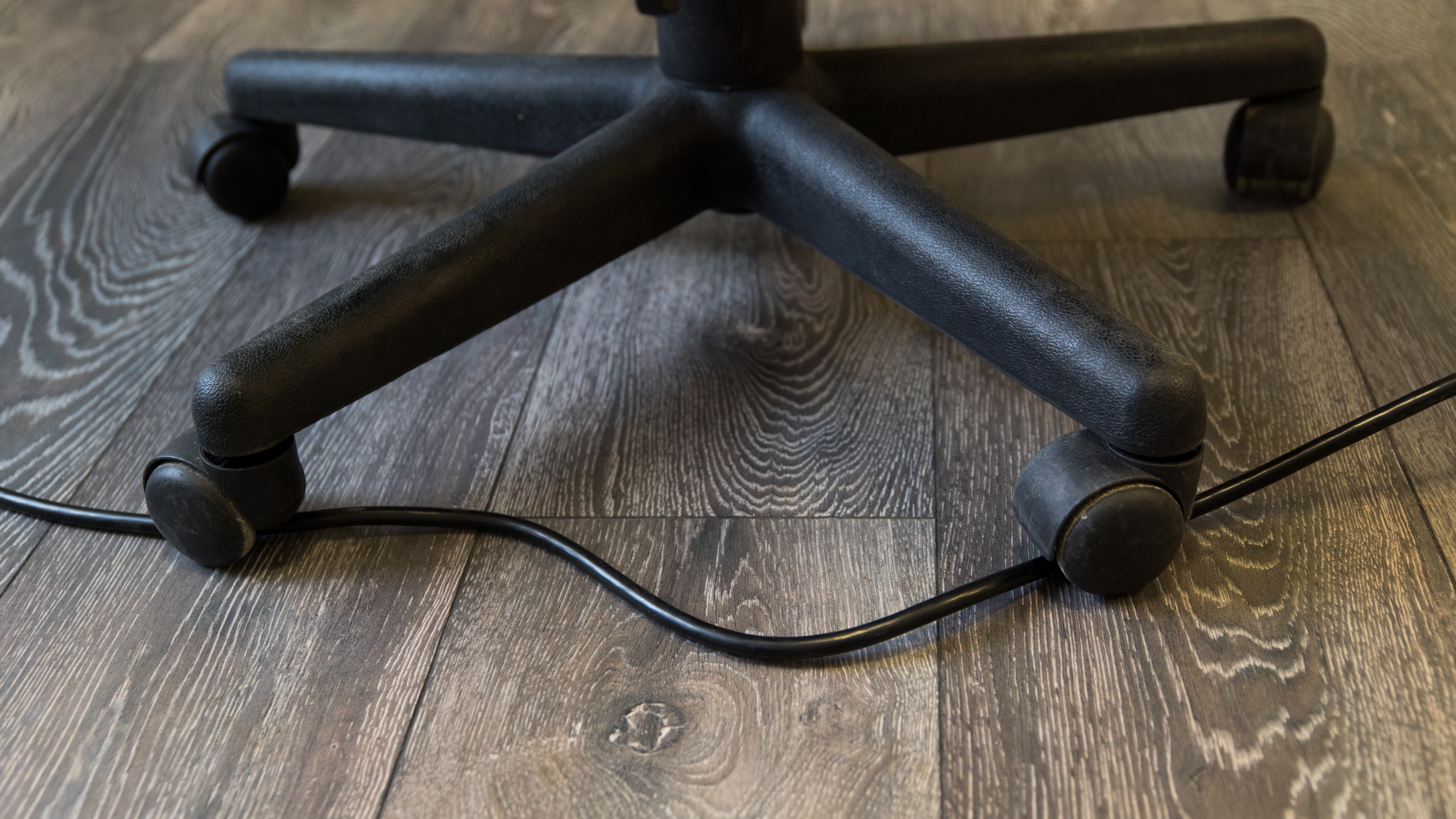
4. Cable Gets Stuck In Wheels of Chair

conference-room-fails-11

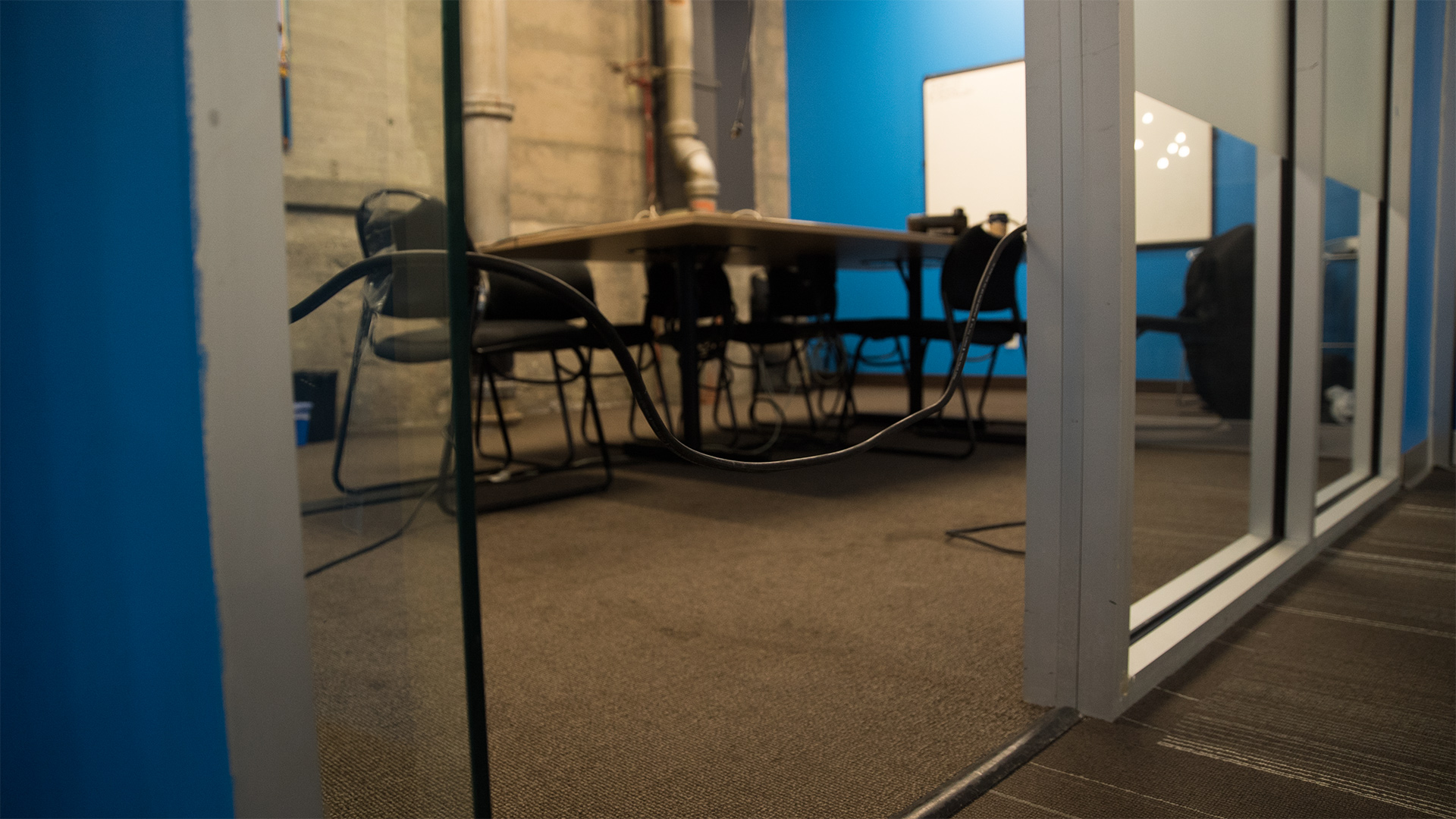
5. Cable Forms Trip Wire at Door

conference-room-fails-4

6. Cable Too Close to Garbage Gets Garbage Juice All Over It

conference-room-fails-6

7. Cable Wrapped Around Leg Of Table

conference-room-fails-7

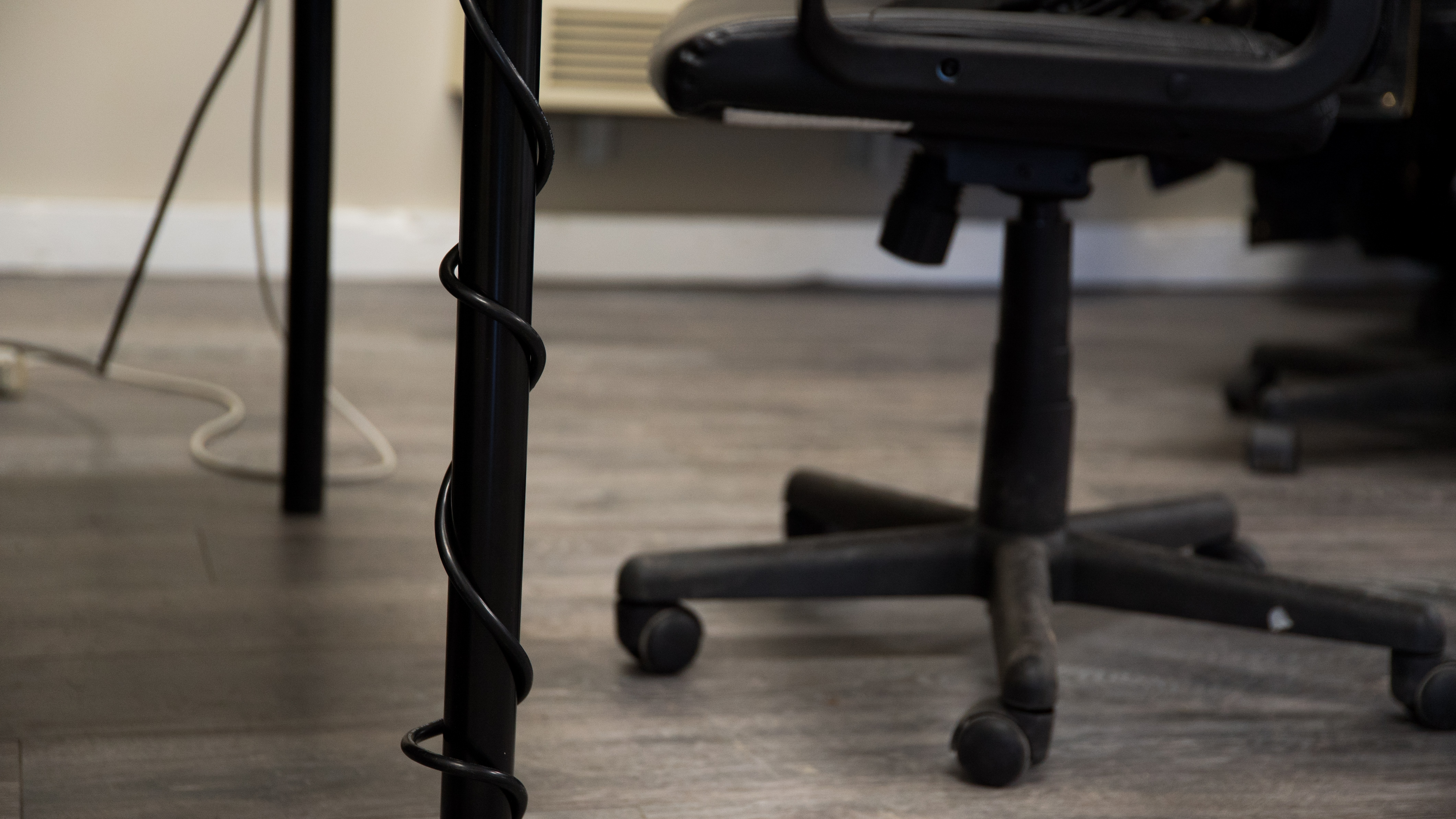
8. Cable Wrapped Around Leg of Chair

conference room cable management fail
 

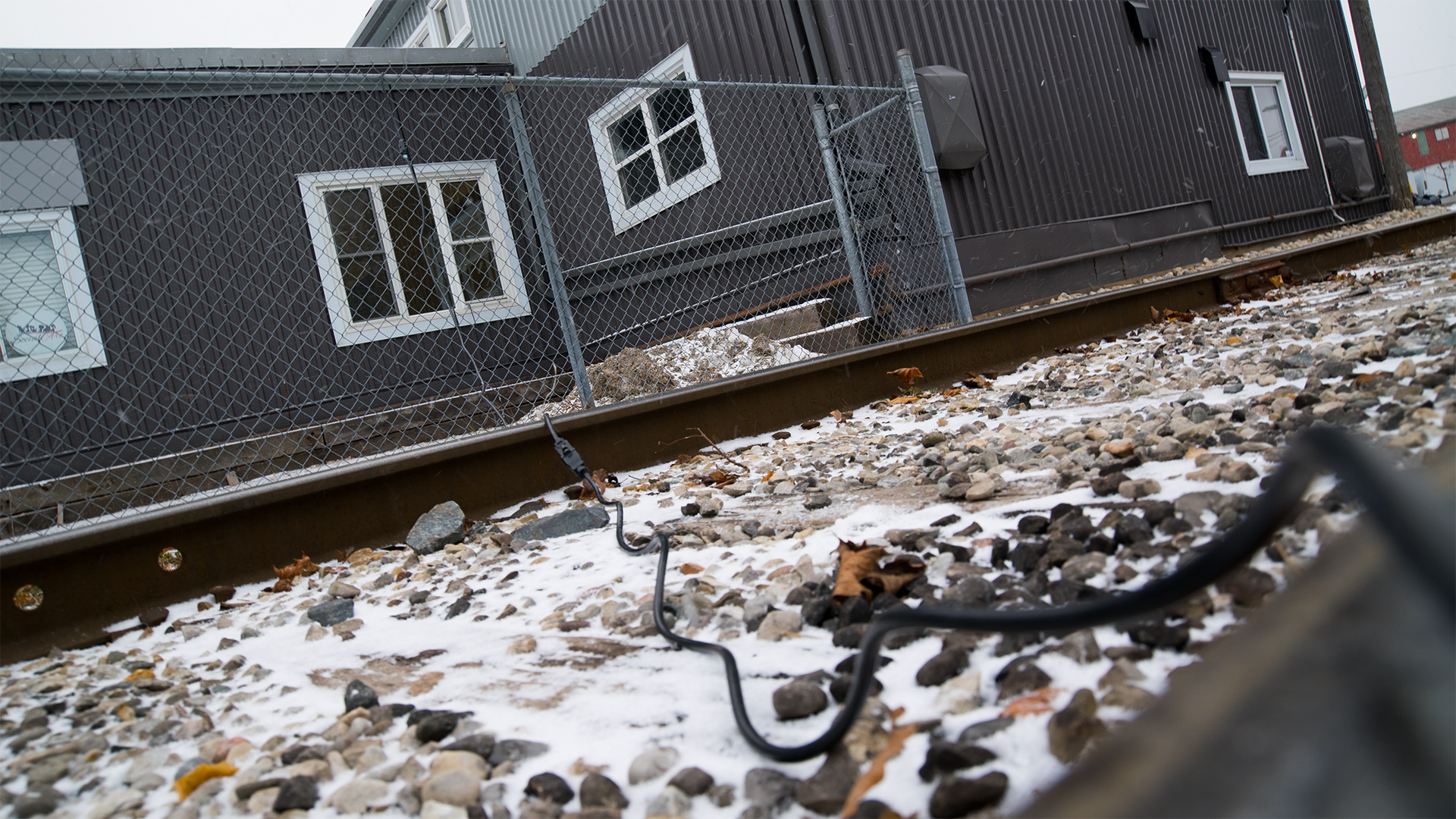
9. Cable Goes Out Window and Across Train Tracks

conference-room-fails-8

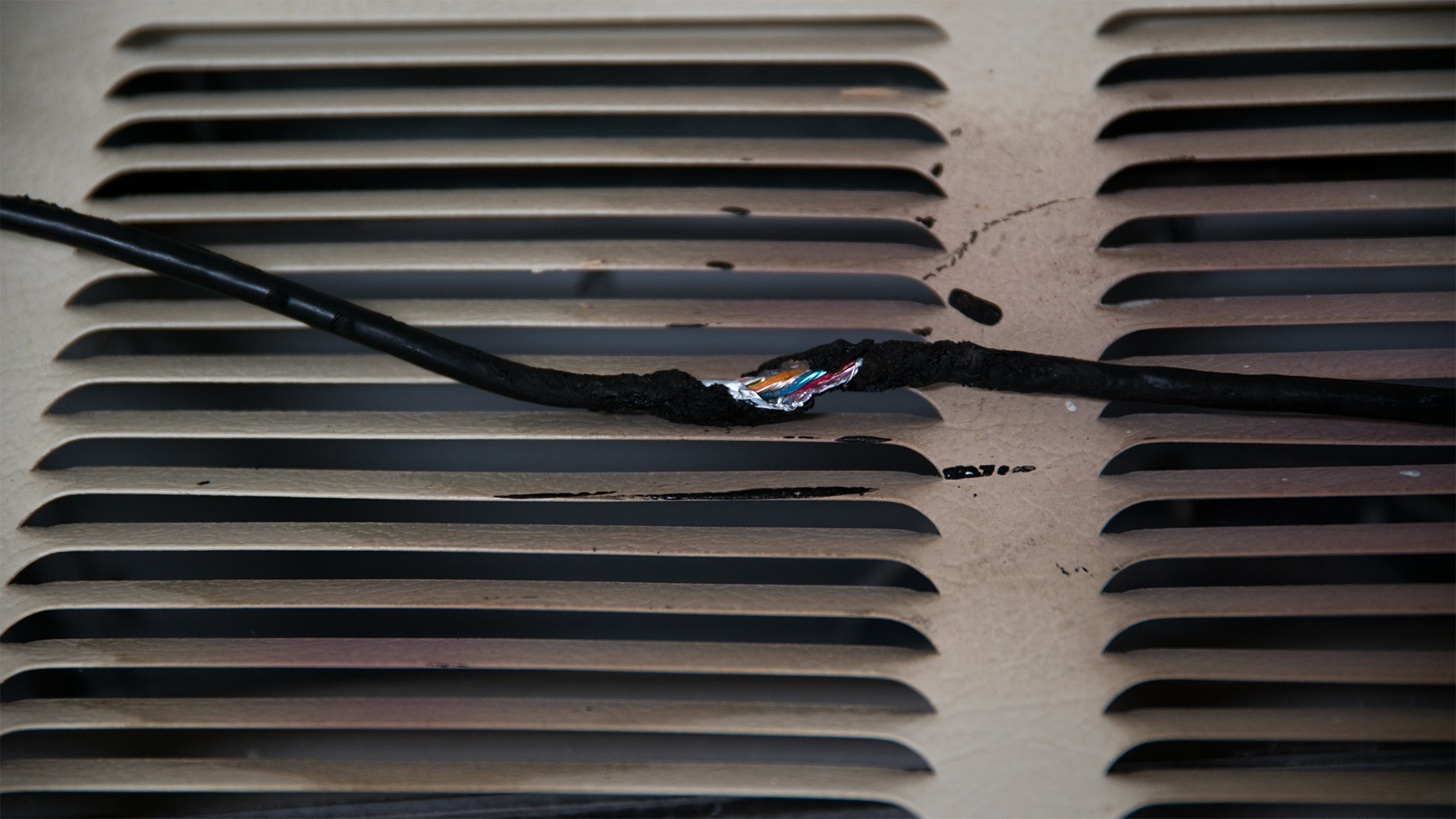
10. Cable Resting on Heater Gets BBQed

conference-room-fails-9
If this is what conference room cable management failure looks like, what about conference room cable management success?
Unfortunately, no photographs of a successfully cabled conference room are known to exist. Like extraterrestrial life or the Higgs boson particle pre-2012, it remains a mysterious phenomenon that no scientist can claim to fully understand.
We can, however, point you toward two devices that make cabling a conference room unnecessary. The first is a garbage bin (for throwing our your pre-existing cables), and the second is a wireless presentation solution.
One of the reasons why conference cable management is such an imposing task is that people bring their own laptops to business meetings and no two laptops come with the same video outputs. Some have HDMI outputs while others have VGA, mini DisplayPort, USB, Thunderbolt, etc. To have just one of these cables readily available at every seat of the conference table is difficult, to have all of them available is well-nigh impossible.
As it happens, all laptops come with WiFi. By allowing your end users to connect via WiFi, you not only save yourself the hassle of running hundreds of dollars worth of cables behind the baseboards, underneath the carpet, and through your connectivity boxes, you also save yourself the hassle of getting called into the conference room every hour to explain to your end users that their SD slots and HDMI outputs aren’t interchangeable.
For more information on the benefits of wireless presentations, please click here.
ADDITIONAL READING
Conference Room Technology: 5 Investments You Should Make
AV System Integrators: Are They Really Necessary?
Top 10 Conference Room Projectors of 2017 
 

Want to set up a wireless Conference Room?Try Now

The world’s brightest flashlight produces 90,000 lumens—enough to light up an entire mountainside at night.
To project an image in a conference room, you won’t require quite that much power. But if you want your image to be visible without dimming the lights, your projector will have to be a bit more powerful than the standard 1200 – 1500 lumens offered by home theater projectors.
This is basically the only thing that separates conference room projectors from their home theater counterparts. So if you hate turning off the lights at the start of every business presentation, you’re going to want to make sure that your conference room projector is capable of producing 3000 – 5000 lumens.
Another important thing to ask yourself before purchasing a conference room projector: Do you intend to use the projector exclusively for PowerPoint presentations that will only be seen by a small group of internal employees in conference rooms that look like this? Or will the projector ever be used to show non-internal employees (i.e. potential clients) things that aren’t PowerPoint presentations (i.e. videos)?
If the first scenario describes your conference room situation, you may want to consider going to your local Best Buy and purchasing the first $300 projector you see. It doesn’t matter what the specs are and there’s no need to do any research beforehand: If a reputable outlet is willing to sell it for $300, it will be more than adequate for the task at hand.
But for those who want to impress clients with videos that aren’t blurry, dim, and look as though they were filmed through a screen door, you may want to consider some of the conference room projectors on this list.

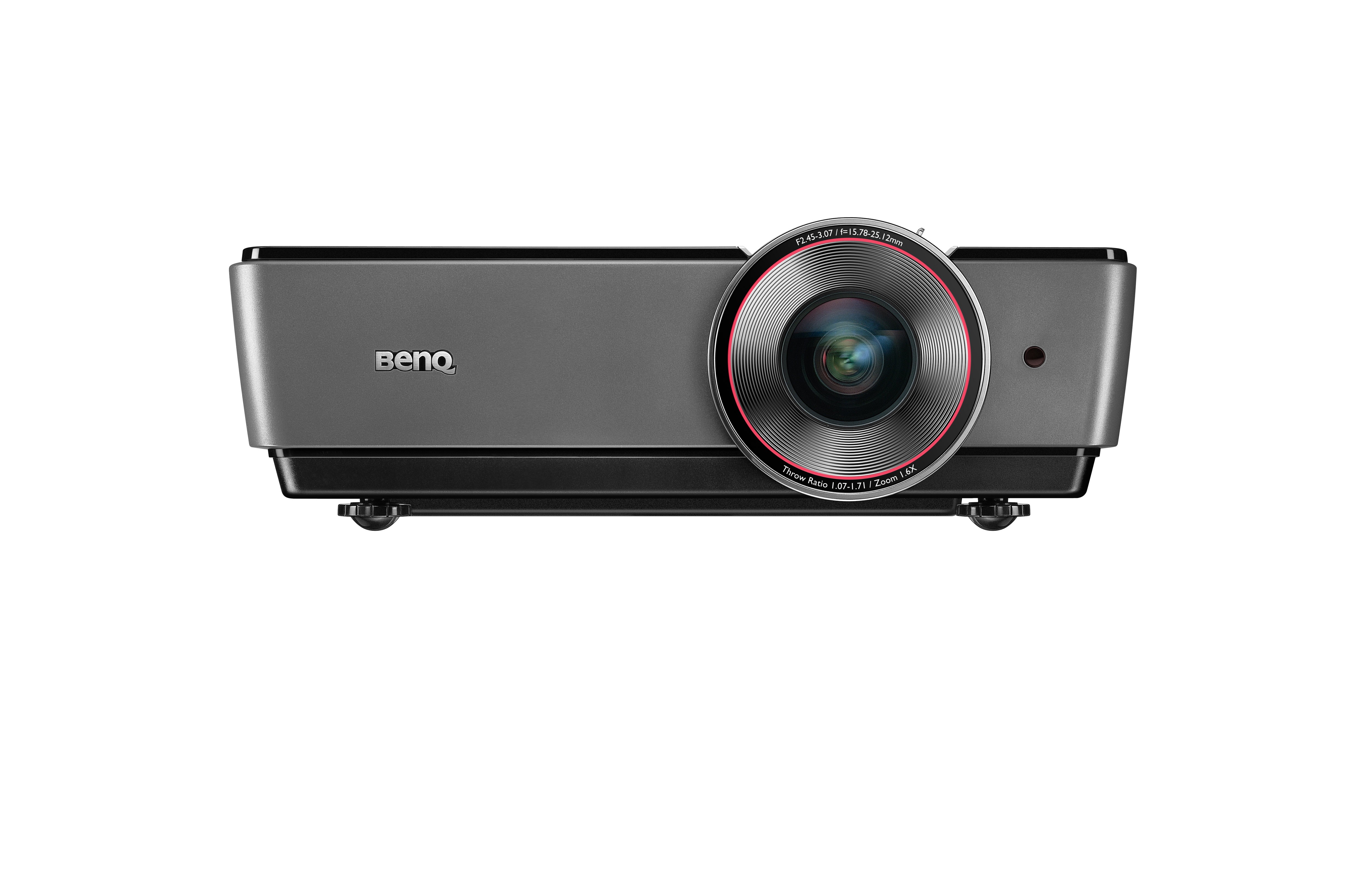
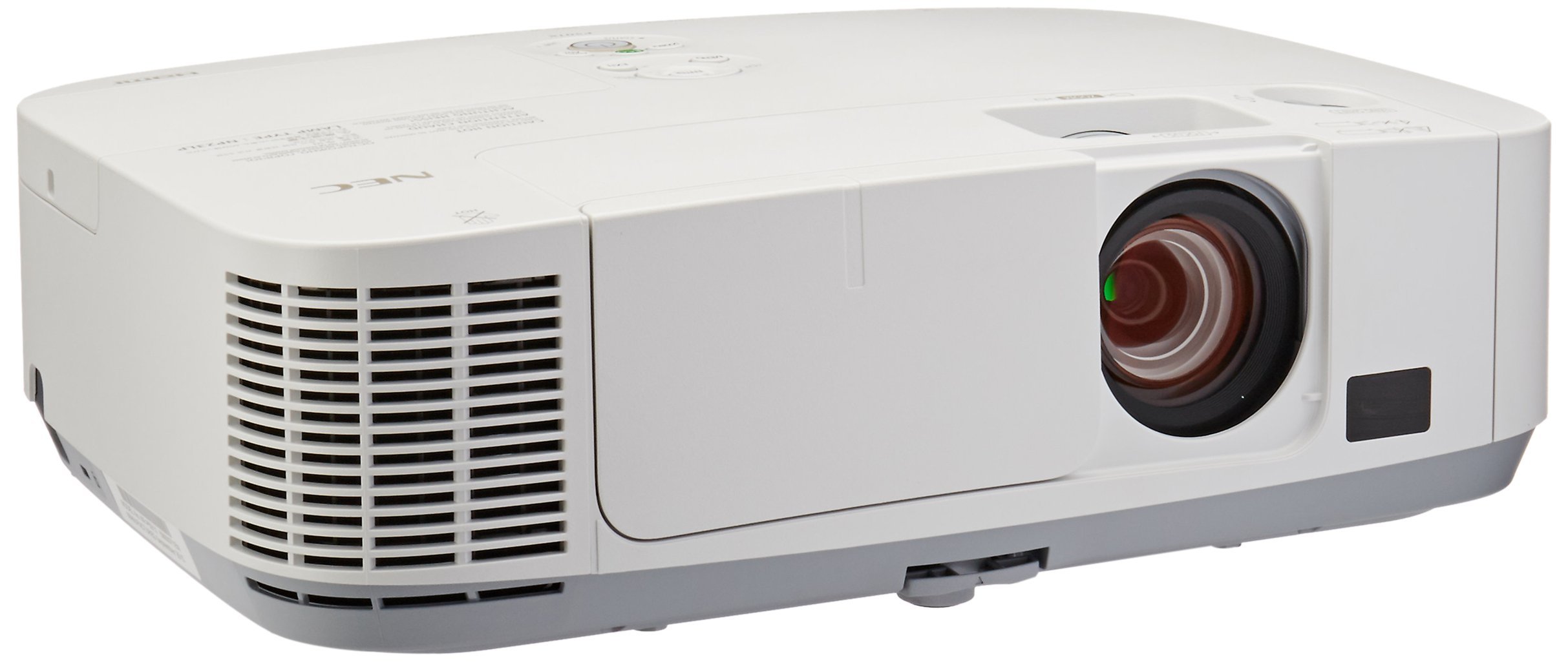
BenQ SU931

BenQ SU931 conference room projectorProjection System:‎ DLP ‎
Resolution‎: 1080p (1920 x 1080)‎
Brightness: 6000 Lumens‎
Contrast Ratio: ‎3000:1 ‎
Weight: 15lbs
Price: $3445.00
The BenQ SU931 produces a whopping 6000 lumens (three times what most higher end home theatre projectors produce), which should be enough power to cancel out your conference room’s ambient light even if it’s lit like Wimbley stadium.

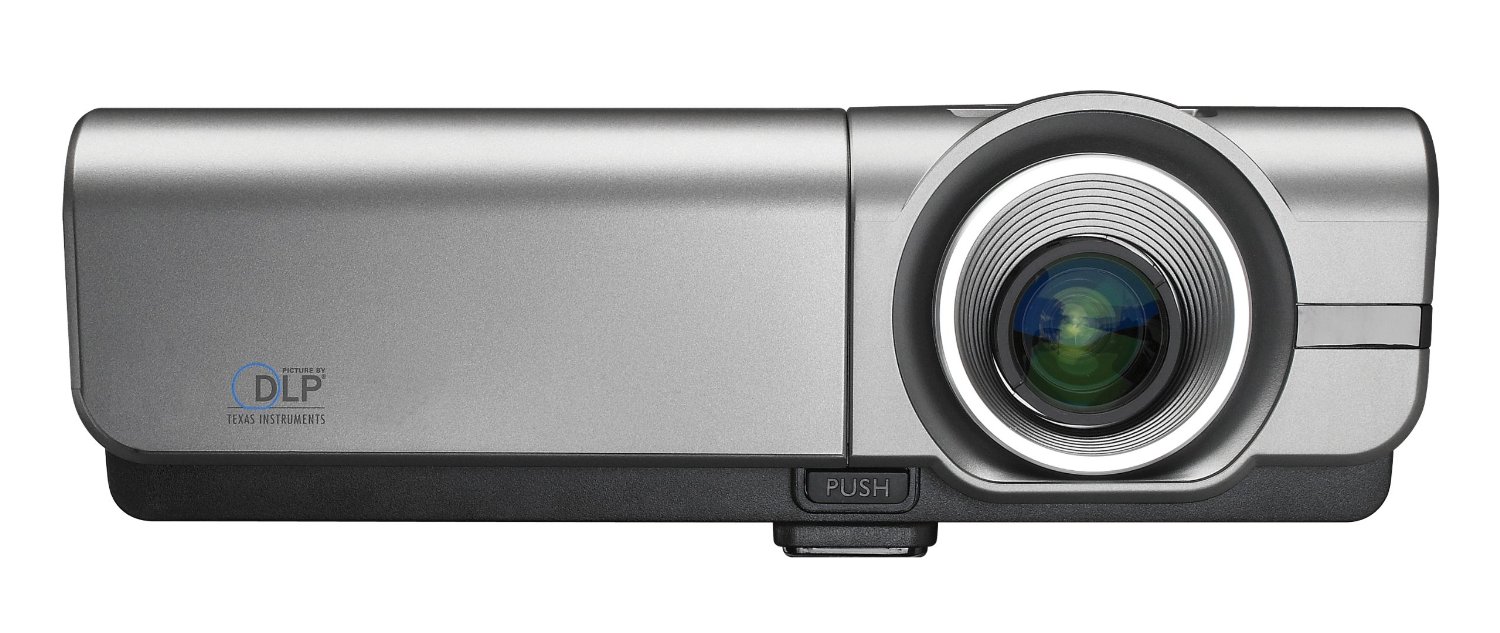
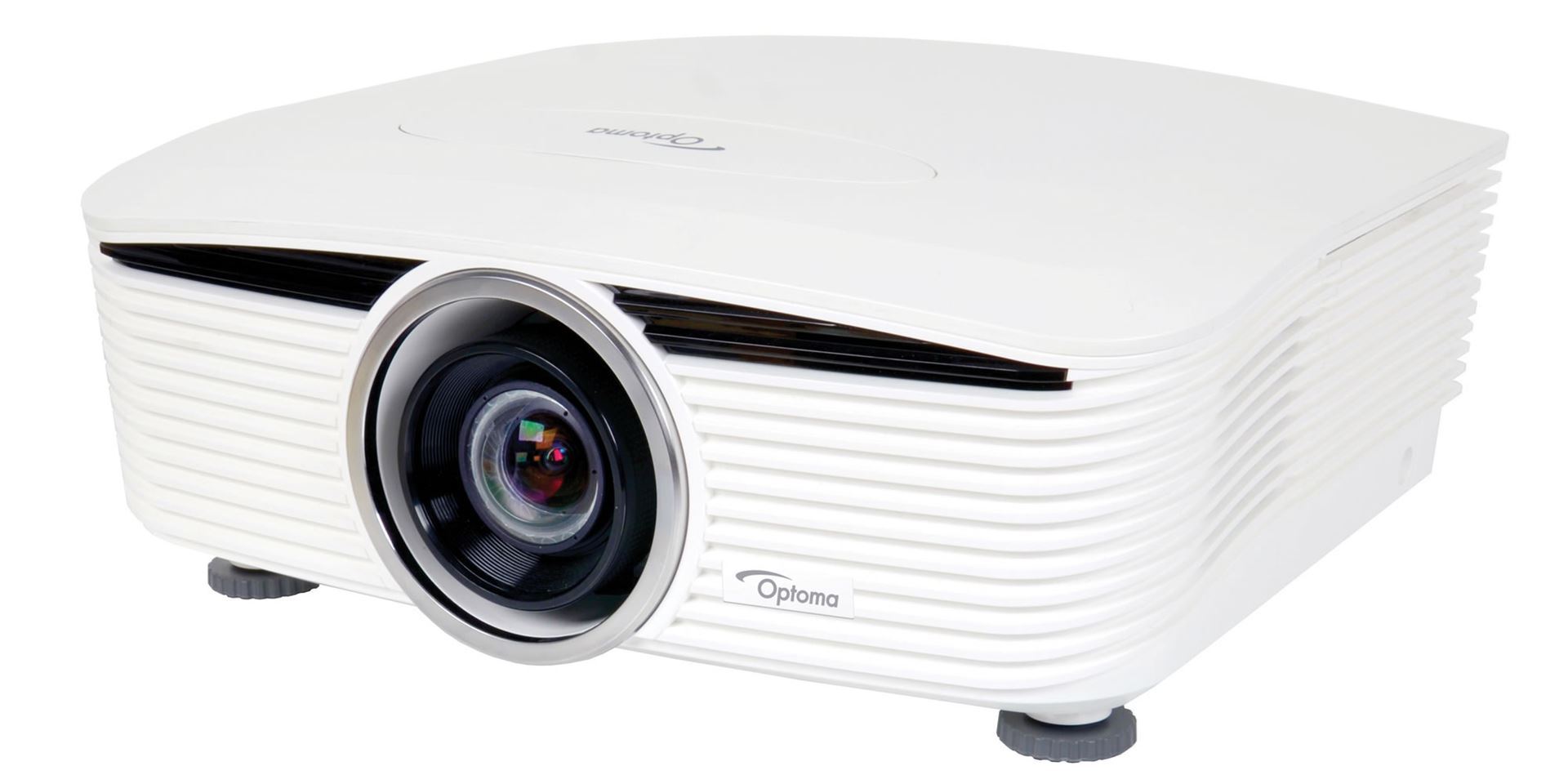
Optoma EH500

optomo conference room projector
Projection System: DLP
Resolution: 1080p (1920 x 1080)
Brightness: 4700 Lumens
Contrast: 10000:1
Weight: 8.2 lbs.
Price: $1199.00
For half the price of the BenQ SU931, Optoma EH500 offers an image which—although not quite as bright as the BenQ—is still extremely bright. Its low weight makes it ideal for businesses that can afford multiple conference rooms but can’t afford multiple projectors.

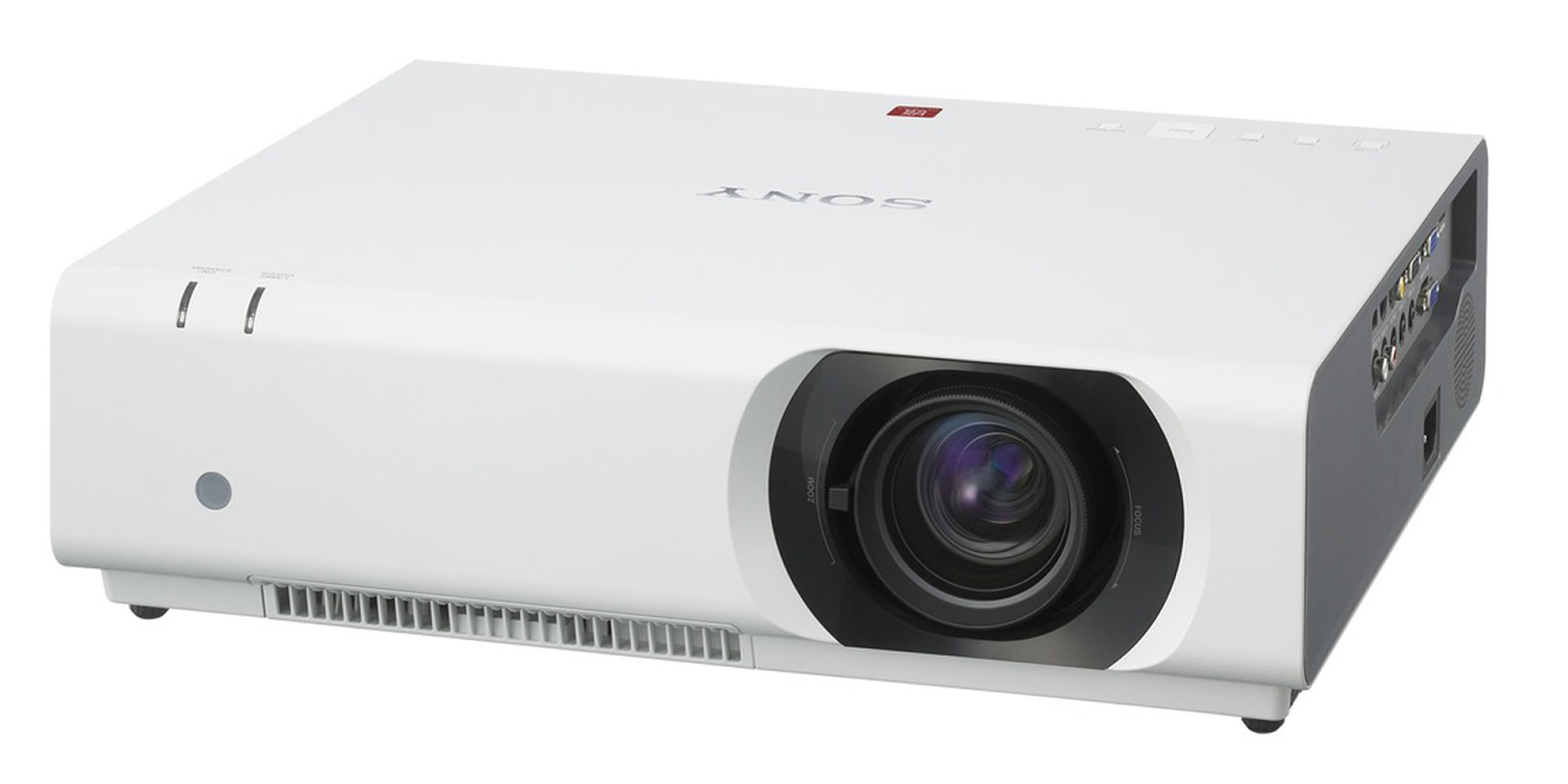
Sony VPL-CH370 Projector

Sony VPL-CH370 Projector
Projection System: 3LCD
Resolution: Wide UXGA (1920 x 1200)
Brightness: 5000 lumens
Contrast: 2500:1
Weight: 12.5 lbs.
Price: $2864.00
For a projector that’s light, bright, offers a crystal clear high-resolution image, and isn’t prohibitively expensive, look no further than the Sony VPL-CH370.

Optoma EH505 Projector

Optoma EH505 Projector conference room
Projection System: DLP
Resolution: Wide UXGA (1920 x 1200)
Brightness: 5000 lumens
Contrast: 2000:1
Weight: 18.6 lbs.
Price: $3295.00
By most metrics, the Optoma EH505 is identical to the Sony VPL-CH370. The only major difference is that the Optoma uses the DLP projection system (which is what most movie theatres use) rather than LCD (which is what most TVs use).
For more information regarding the difference between DLP and LCD, click here.

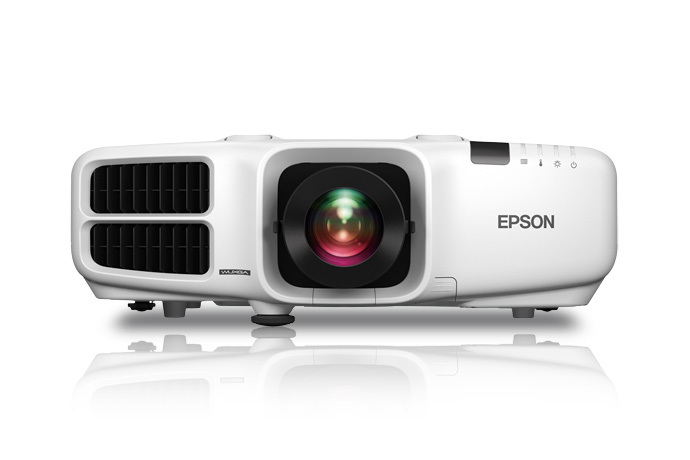
Epson PowerLite Pro G6470WUNL

96wx96h
Projection System: 3LCD
Resolution: WUXGA (1920 x 1200)
Brightness: 4500 lumens
Contrast: 5000:1
Weight: 21.5 lb
Price: $5,179.00
If you’re tempted by the Sony VPL-CH370, but wish it had double the contrast for double the price, then the Epson PowerLite Pro G6470WUNL could be the projector for you.

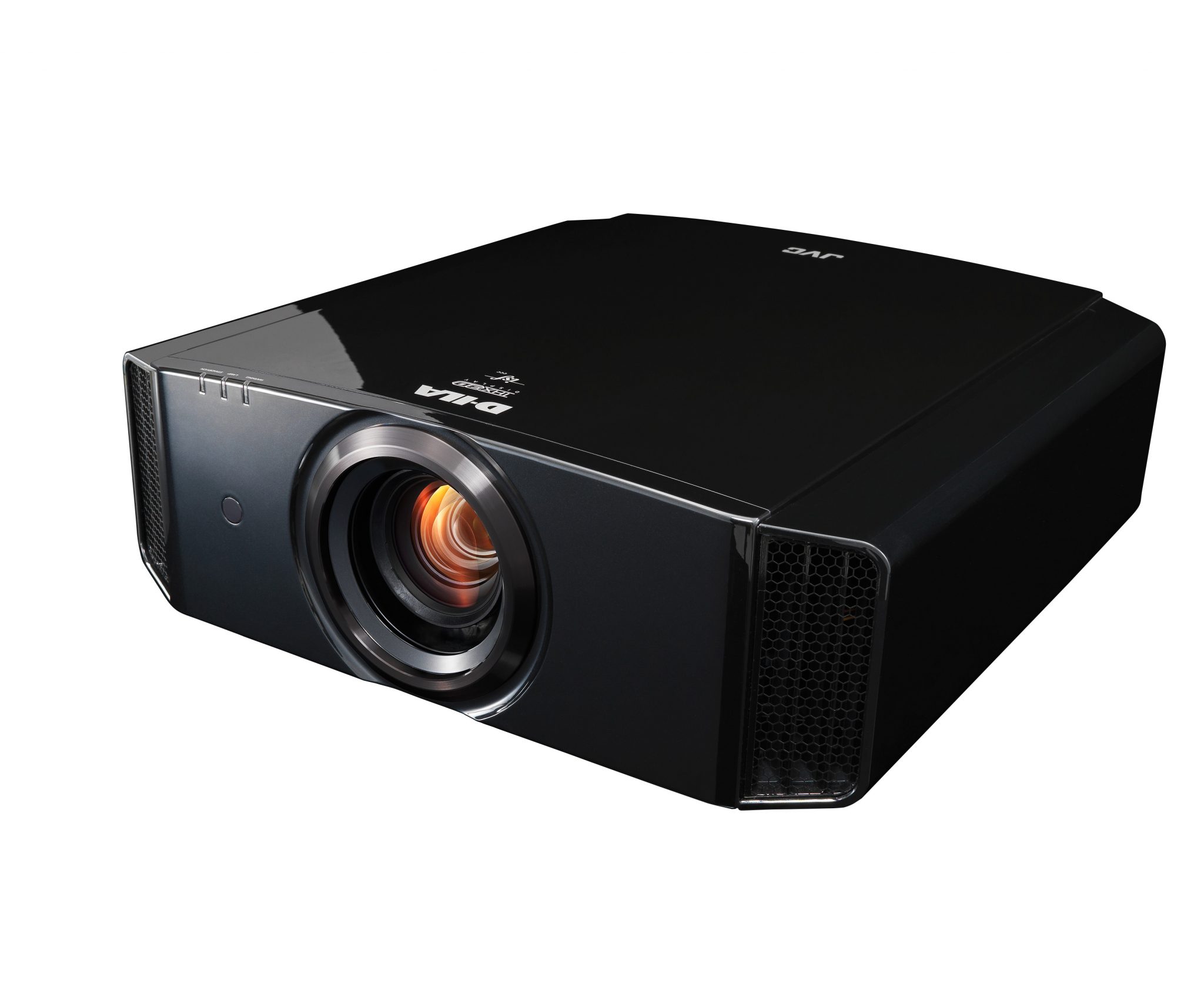
JVC DLA-RS400U Reference Series 4K Projector

JVC – DLAX500R conference room projector
Projection System: D-ILA
Resolution: 3840 x 2160
Brightness: 1700 lumens
Contrast: 40,000:1
Weight: 34lbs
Price: $3999
Although it may not be powerful enough to project a clear image in an already bright room, JVC DLA-RS400U is ideal for conference rooms that have dimmer switches. If you can find some relevant 4K media to play, the resolution is bound to knock clients off their feet. (Although this projector doesn’t technically offer true 4K, 3.84K is so close that clients shouldn’t be able to tell the difference).

NEC NP-P501X Projector

 
galleonph-4132656-3

Projection System: LCD
Resolution: 1024 x 768
Brightness: 5000 Lumens
Contrast: 4,000:1
Weight: 14 lbs
Price: $1749.00
For spectacular brightness at an affordable price, the NEC NP-P501X can’t be beat. As far as resolution is concerned, however, the NEC certainly can be beat. So if your business meetings involve wooing clients with stunning 4K videos, you may want to look elsewhere.
 

Sony VPL-VW1100ES Native 4K 3D SXRD

Sony VPL-VW1100ES Native 4K 3D SXRD conference room projectorProjection System: SXRD
Resolution: 4096 x 2160
Brightness: 2000 lumens
Contrast: 1,000,000:1
Weight: 44 lbs
Price: $27,998.00
If you’re fairly confident that you won’t get fired for purchasing a conference room AV product that costs as much as a car, you can’t go wrong with the Sony VPL-VW1100ES Native 4K 3D SXRD. Turning this thing on during a business meeting will have the same psychological effect as picking up your clients in a MacLaren F1 and taking them on a tour of the world’s most expensive restaurants.

Conference Room Projectors & Connectivity

No matter which conference room projector you end up purchasing, it’s important to make sure that your end users will be able to easily connect to it. Most of the projectors listed above come with a wide variety of video inputs (HDMI, VGA, mini DisplayPort, etc), so if you purchase a large collection of cables and adapters (some of which are listed here), your end users should only face 5 to 10 minute delays getting their laptops connected.
Alternatively, you can invest in a wireless presentation solution which will allow your end users to connect to the projector in 1 second no matter what video outputs their laptops come with.
ADDITIONAL READING
5 Must-Have AV Products For Your Conference Room
Wireless Conference Rooms vs. Cabled Conference Rooms: Which Has the Better ROI?
Death of the Shared Conference Room PC

Want to set up a wireless Conference Room?Try Now

Of all the tricks, hacks, and shortcuts that you can use to make your conference room cables look presentable, the best and most efficient is to simply throw them in the garbage and switch to a wireless presentation system.
But failing that, the second best solution is to invest in a conference table connectivity box (or, for businesses that have multiple conference rooms with large-sized tables, dozens and dozens of conference table connectivity boxes).
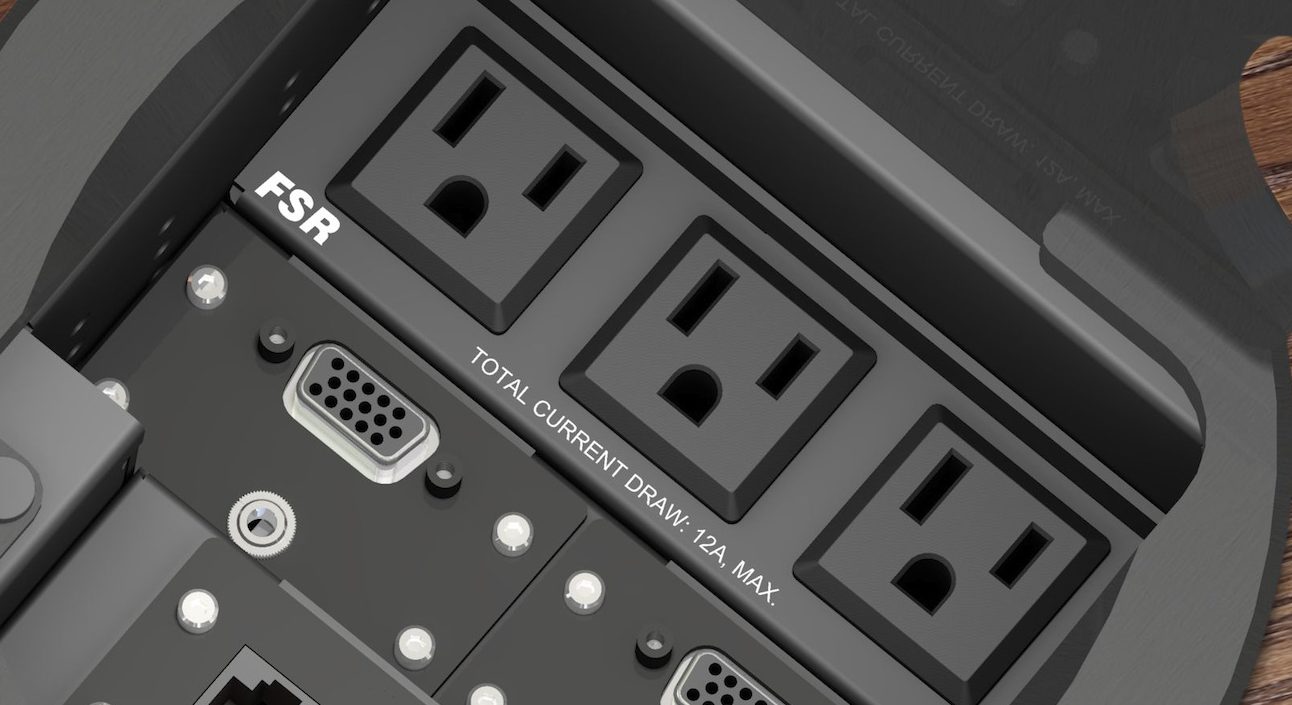
Retailing for roughly the same price as a new iPad, the conference table connectivity box fits snugly into the center of your meeting room table (although you may have to drill a hole first) and provides your end users with a wide array of video inputs to choose from. If one end user has a VGA port on their laptop and another user has an HDMI port and a third user has a mini DisplayPort, there’s no need to panic: As long as you have the relevant cables on hand, they can all plug in directly to the connectivity box rather than get up and connect to the back of the conference room TV or projector.
But not all conference table connectivity boxes are the same. There are only so many ports that you can fit into a box that’s 9 inches by 7 inches and not every connectivity box will have the inputs that you require. Here are the 7 ports that you’ll need most urgently.

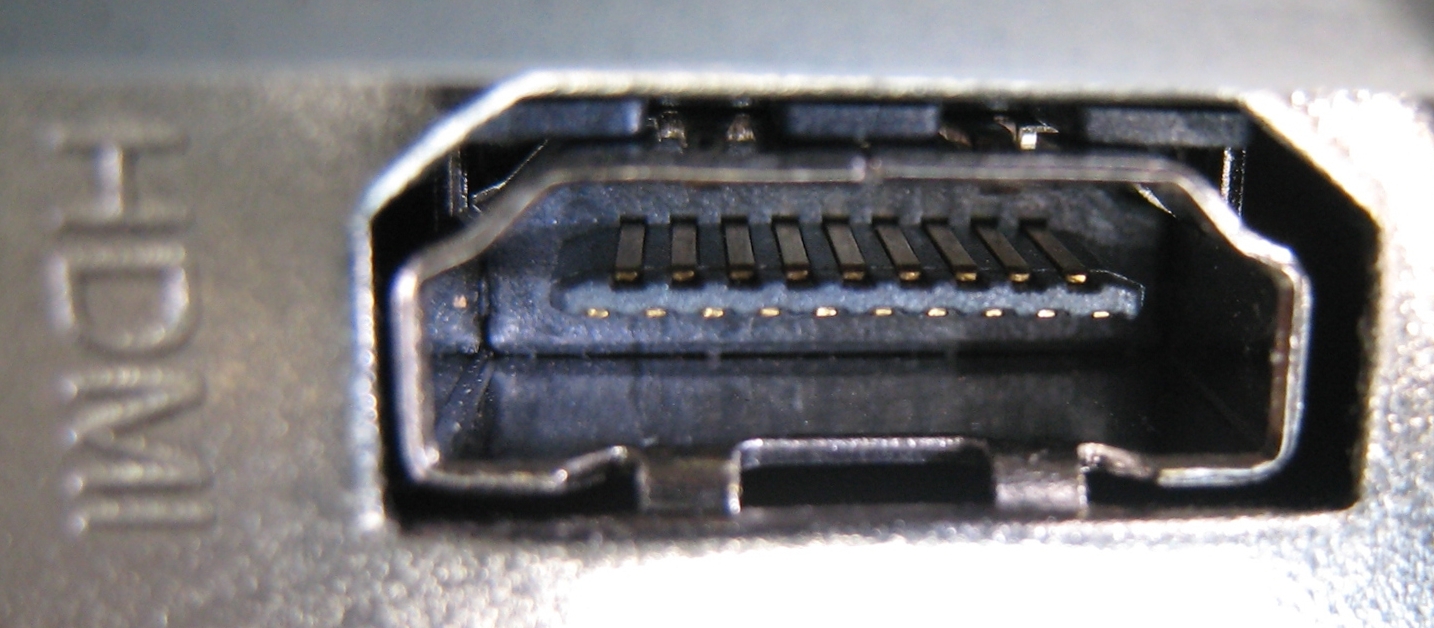
1. HDMI

The most useful output for your conference table connectivity box: HDMI port

First introduced in 2003, HDMI became the dominant video cable around 2007 and has held its grip on the market ever since. If your conference table connectivity box has just one video output, make sure it’s an HDMI.

 2. VGA

Prior to HDMI’s 2007 takeover, VGA cables were the king of the land. In this day and age, buying a new laptop or projector that has a VGA port is about as challenging as buying a new, factory-sealed VHS player. Even so, there are still a surprising number of perfectly functional laptops and projectors kicking around that rely on them, and the odds that one of these devices will end up in your conference room are not insignificant. By having a VGA input in your connectivity box, you will be adequately prepared for this scenario (provided, of course, that you also have a VGA to VGA cable on hand).

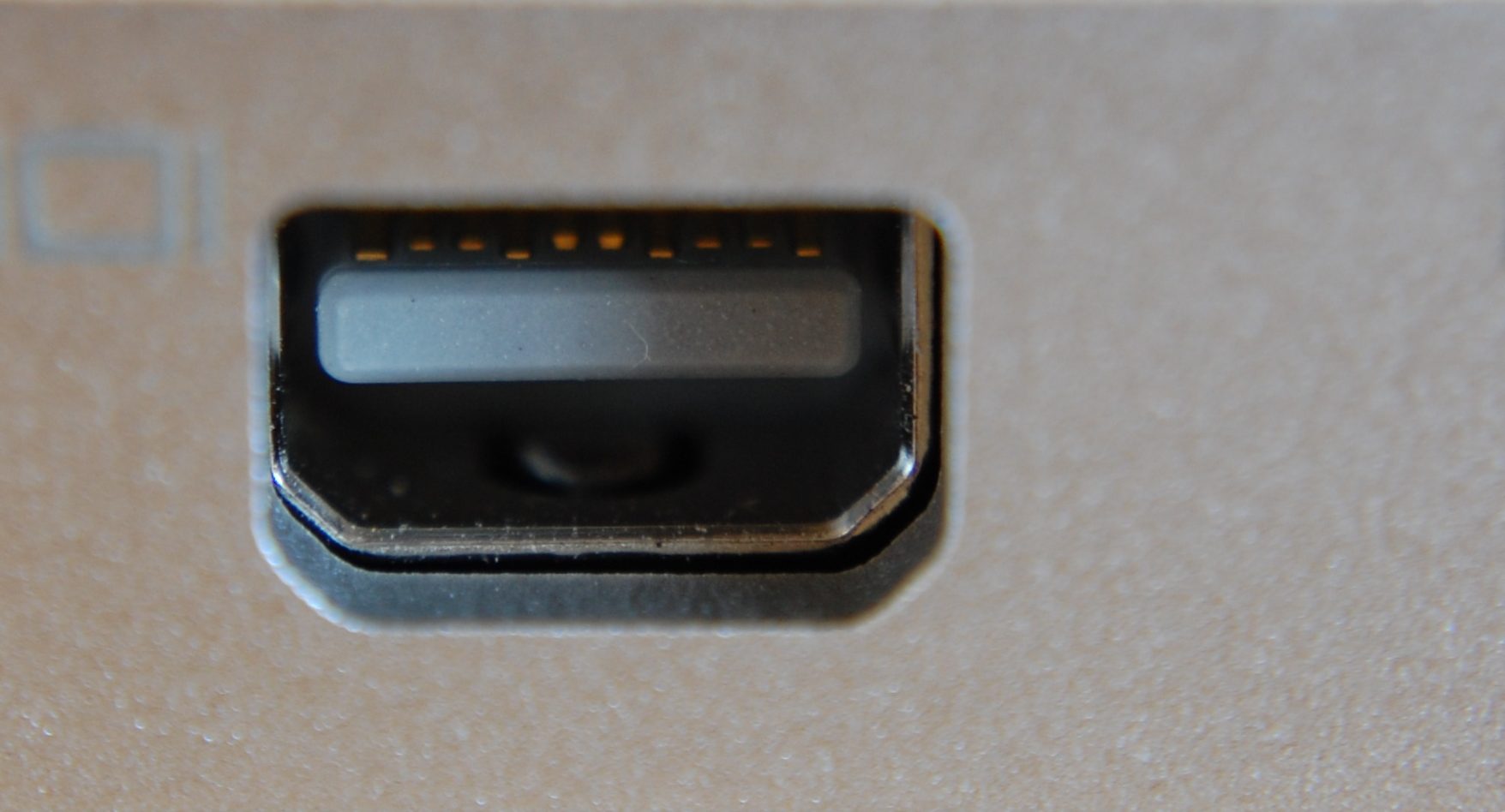
3. mini DisplayPort

Apple first introduced the mini DisplayPort in 2008 and by 2013 it was a standard feature on all Apple computers. Earlier this year, however, Apple began phasing the port out.
Given the extremely large volume of devices currently in circulation that have mini DisplayPorts but no HDMI or VGA ports, it’s a good idea to make sure your conference table connectivity box is equipped with this input. It may not be till 2030 that the last laptop with a mini DisplayPort stops functioning.

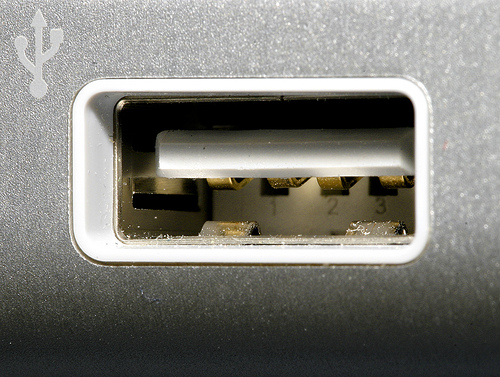
4. USB


The history of USB cables is a bit like the plot of the movie Tinker Tailor Soldier Spy: You need to carefully read its Wikipedia page three times in order to understand it. But you don’t need a firm grasp of its history in order to realize why it might be needed in the conference room: It’s a universal industry standard that plugs into just about anything.

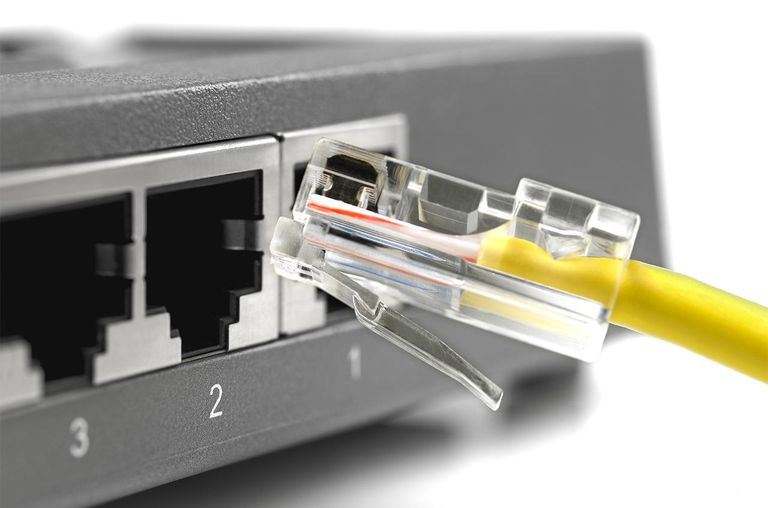
5. Ethernet

You should probably make sure your conference room connectivity box has an Ethernet port.
Since all laptops are capable of connecting to Wi-Fi, it’s difficult to imagine why your end users would need an Ethernet port. But after browsing through a list of all of the connectivity boxes currently on the market, it quickly becomes apparent that they all come with Ethernet ports, so there must be some sort of demand for them.

6. YPbPr component video


Likewise, it’s difficult to imagine why anyone would need to connect a VHS player or miniDV camcorder to a conference room TV or projector. But since the vast majority of connectivity boxes come with this input, it’s only reasonable to conclude that VHS-based business presentations are far more common than one might initially assume.

7. AC


Of course, all of these inputs are useless to a laptop that isn’t powered on. True, most laptop batteries last at least 2 – 5 hours. But you already have six plugs in your connectivity box, so there’s no harm in throwing in a seventh for good measure.

Other Things To Consider

Once you’ve drilled a hole into your conference room table and installed your connectivity box, your journey toward a presentable-looking conference room is almost complete. All you have left to do is to run the seven aforementioned cables through some cable management boxes, under your carpet, and along your baseboards. For more information on how to do this, please consult our conference room cable management checklist.
Or, if this whole process sounds like too much of a hassle, you may want to look into switching over to a wireless presentation solution that allows your end users to instantly connect to the TV or projector no matter what type of video outputs their laptops have. It only takes 10 minutes for IT to install, and you don’t have to mutilate your conference room table with power tools to do it.
ADDITIONAL READING
Picking a Conference Room Name: 5 Tips to Help You Get Started
Top 10 Conference Room Projectors of 2017
Conference Room Design: 10 Examples Worth Studying
 

Want to set up a wireless Conference Room?Try Now

The average cost of an HDMI cable is $10 – $15.
At first glance, this may seem like a pretty sweet bargain. For the price of a movie ticket or a foot-long submarine sandwich, you can buy a piece of equipment that easily attaches to the back of your conference room TV and instantly solves all of your connectivity issues forever.
What’s not to like?
Well, consider the following statistics:

  • Despite the prevalence of HDMI cables in enterprise conference rooms, 87% of IT managers report that problems connecting laptops to the TV is one of the top 3 issues that they are called on to deal with.
  • 88% of end users complain about meeting room equipment.
  • The average IT manager is called upon to resolve 8.6 meeting room technology problems per week. That’s 447.2 incidents per year.
  • The average meeting room technology problem takes 23.1 minutes for an IT manager to resolve. That’s 3.31 hours per week or 22.95 days per year.

Why so many problems with cables?

In today’s BYOD environment, end users give presentations from their laptops, and not all laptops have HDMI outputs. Some have VGA, DVI, Thunderbolt, etc. This means that in addition to HDMI cables, IT managers also need to have a small arsenal of alternative video cables and adapters on hand at all times. All of those $15 cables and adapters can add up fast, and good luck making them look presentable: The art of conference room cable management is an extraordinarily difficult thing to master. (So much so that many IT teams end up hiring AV installation companies to do the job for them).
Consider some more statistics:

  • In addition to the 23 days per year that IT managers waste solving cabling issues, employees waste 15.5 days a year in unproductive meetings.
  • 90% of presenters prepare for technology failure (such as printing off handouts in case screen sharing doesn’t work), and 44% do a tech rehearsal beforehand
  • Atlassian estimates that the salary cost of unproductive meetings for U.S. business is $37 billion.

So while the cable itself may only cost as much as a movie ticket, the true cost of cables—once salaries, wasted time, and AV installation costs are factored in—is much closer to a full-on movie production.

What about wireless conference rooms?

Unlike their cabled counterparts, wireless conference rooms don’t require constant troubleshooting, and therefore enterprises don’t hemorrhage money by deploying them. Although the initial cost of a wireless presentation system may be a bit steep compared to the $15 you’d spend on an HDMI cable, the amount saved in the long run is gargantuan. As far as ROI is concerned, wireless conference rooms are to cabled conference rooms what law degrees are to lottery tickets.
But there is a bright side to using cables: IT managers report that they walk a distance of 92.5 meters from their desk to the meeting rooms and back each time they have to go to help with a meeting room technology incident. This means they walk at least 3.2 km per week or 41.366 km per year.
With all that exercise, who needs a gym membership?
ADDITIONAL READING
Conference Room Cable Management Checklist
Top 5 Conference Room TVs of 2017
Death of the Shared Conference Room PC

Want to set up a wireless Conference Room?Try Now

Dearly beloved, we are gathered here today to mourn the loss of the shared conference room PC, a device which leaves in its wake an imposing and far-reaching legacy. Although this legacy is mostly built on a foundation of headaches, frustration, despair, we must remember that the device did work on occasion. And when it worked, it worked well. Or at least semi-well.

To say that the shared conference room PC left us too soon would be wildly inaccurate. Nor can any of us say with a straight face that it will be missed. But to openly gloat over its demise at its own funeral service (as many of us here are no doubt tempted to do) would be tremendously undignified. It is therefore with the utmost solemnity that we extend our condolences to its surviving relatives—the conference room chair, the conference room table, and the dry erase board.

From the moment it was first introduced into the conference room, the shared PC demonstrated a faint glimmer of potential. In fact, for end users who finished their PowerPoint projects a day prior to their presentations, it was almost the ideal solution. All the end user had to do was e-mail the PowerPoint file to the IT department, who would then load it onto the shared PC, and—provided that there were no compatibility issues—the presentation would be ready to go.

Sure, it didn’t always work seamlessly. Login procedures were complicated, boot up times were slow, and software updates were constant. But it got the job done most of the time. Who here among us could have predicted that it would flame out in so spectacular a fashion?

Then came the BYOD era and, along with it, the beginning of the shared PC’s sad decline.

When your laptop screen can be shared wirelessly with just one click of the button, why bother sending your PowerPoint to the IT department 24 hours in advance? What if inspiration strikes you on the morning of your presentation and you want to make a revision? Then you have to send IT a new version and cross your fingers that the old version doesn’t play by mistake. Sorry, but no one wants to go through all of that.

From IT’s perspective, the benefits of ditching the shared PC were even more obvious. Why go to all the effort of making sure the shared PC always has the latest version of PowerPoint (not to mention all of the other presentation programs that are quickly gaining popularity) prior to every meeting? Why waste time downloading 12 different presentations and making sure that they all play when your connectivity issues can be solved in one second?

I can’t think of a good reason either.

And so on that note, we bid adieu to the shared conference room PC, an inadequate device which we all grudgingly tolerated because we had no other choice. And now that a choice exists, we can safely send it off to be reunited with the overhead projector in the big conference room in the sky.

This concludes today’s service. Coffee and snacks will be served in the lobby.

Want to set up a wireless Conference Room?Try Now

For freelancers and remote employees, finding a decent work space can be a bit like wandering the desert in search of an oasis.
desert-pic
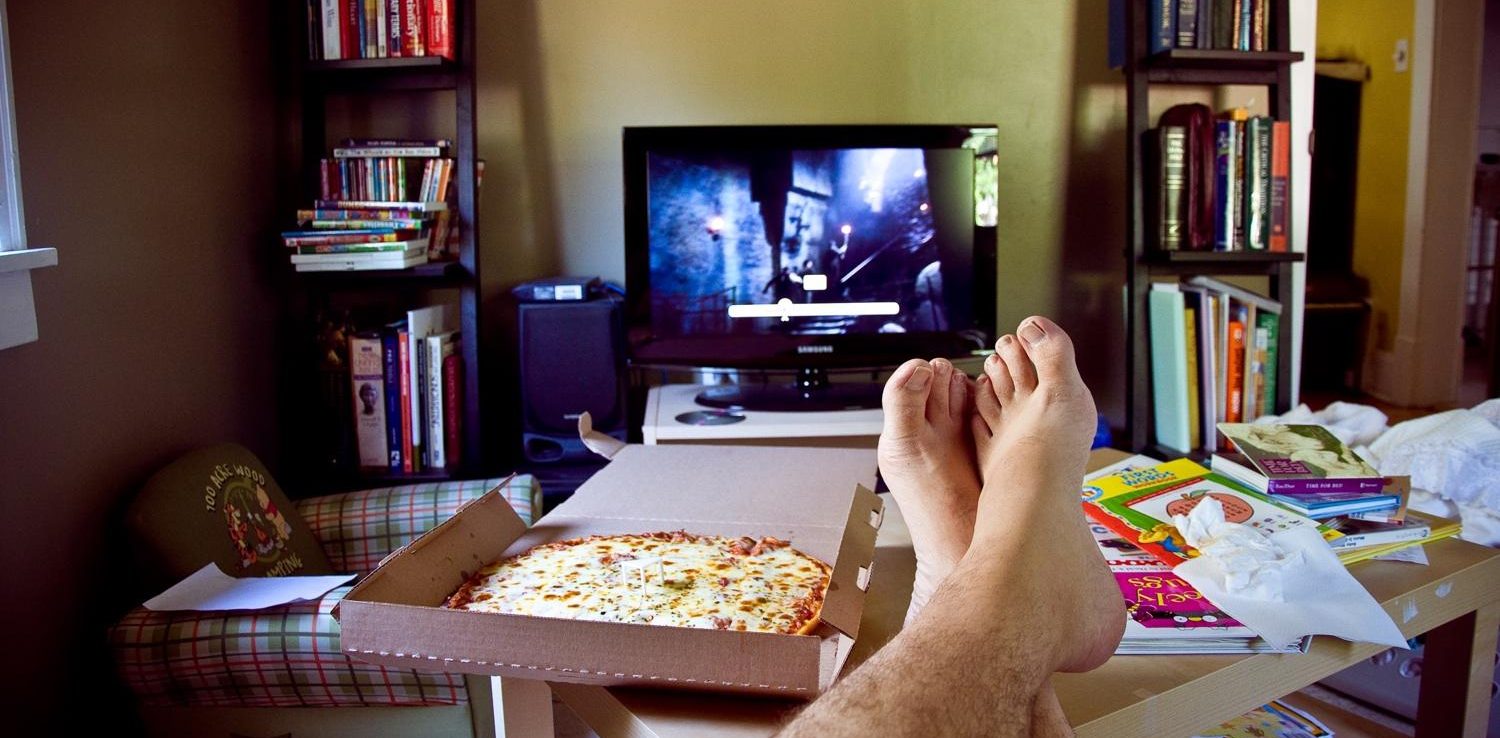
Working from home is always an option, but only for the ultra-disciplined. For most people, the combined temptations of a sofa, TV, and an Internet connection that doesn’t automatically block Netflix are just too overwhelming.
working from home
Working from a coffee shop is the next best option, but it too has its drawbacks (namely $6 lattes, limited seating, and lousy Wi-Fi).
expensive coffee
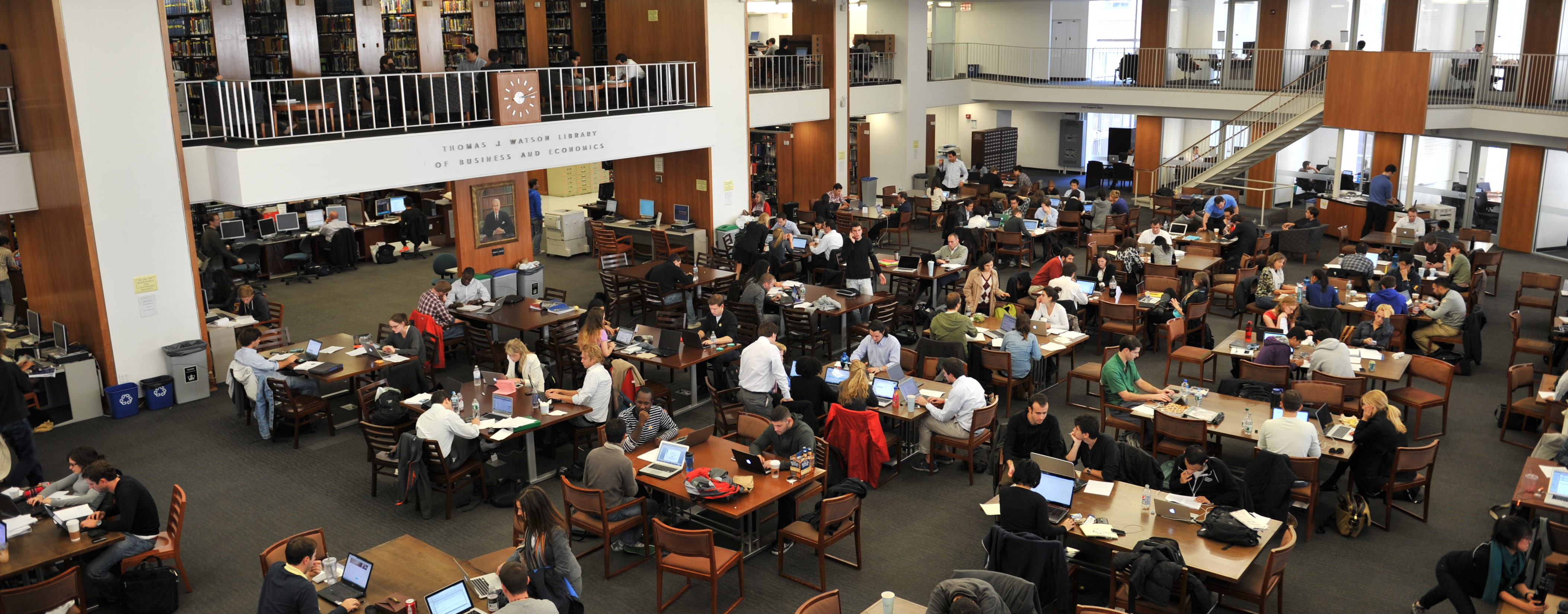
And then there’s working from the library, which is exactly like working from a coffee shop if you replace the $6 lattes with enormous stacks of books.
crowded library
This is where co-working spaces enter the picture. For the same amount of money you spend on your daily latte, you can rent a desk at a co-working space and enjoy all the benefits of going to an office every day, just like a normal employee.
Having people to talk to and collaborate with, having a daily routine, having a desk that isn’t three feet away from your bed—no longer are these off-limits. And unlike a “normal” employee, you get to enjoy all these perks without the hassle of having to work in the same building as your boss.
cool co-working space
In 2014, Inc. reported there was 83% growth in the number of co-working spaces, with memberships increasing by 117% between 2012 and 2013. This year, the number of co-working spaces in the world is poised to reach 10,000.
Of those 10,000 space, here are 10 that we think stand out from the pack.

  1. Impact Hub (Multiple locations)
    86 locations throughout the world and counting! ImpactHub is all about community connections and support. What’s special about this company is that it offers a franchise-like opportunity to open a location in one’s city or town via its Makers program. Each hub has its own offerings from their rentals to their events. For example, Impact Hub in Philadelphia, PA, offers a free co-working day on Wednesday for the community to explore the space and experience “a day in the life…” Rates will vary by location.
  1. WeWork (Multiple locations)
    With locations throughout the US, Israel, UK, and the Netherlands, WeWork offers a number of scalable space solutions for the freelancer to the large company. WeWork locations act as community centers offering shared and dedicated work spaces to meet your business and networking needs. Depending on the membership level, WeWork offers access to conference rooms and communal/recreation space. Members can enjoy a variety of perks, including free coffee/tea and arcade games. Memberships also include benefits to receive special offers from over 200 partners, such as Moo for business cards and ZipCar for travel.
  1. The Surf Office (Multiple locations)
    Who doesn’t want to work on the beach?!?! The Surf Office, with locations in Lisbon, The Canary Islands, and San Francisco makes it all possible. They’ve tapped into the “Work Hard, Play Hard” motto by offering on-site sleep accommodations, a place to work, and group field trips to explore the location and its culture. The Surf Office has created an international community of travellers, working on-the-go, to network and exchange ideas. Companies, big and small, can organize company retreats at The Surf Office locations. Their goal is to bring all employees together, including remote workers. Whether it’s for team-building exercises or to work on special projects, the opportunity for collaboration is a benefit within itself.
  1. Workplace One (Multiple locations)
    With 3 locations in Toronto and 1 in Kitchener, this Ontario-based co-working company offers its members virtual and physical office solutions based on work needs. Options range from flex space (shared desk) to meeting room as day office rental. Members can tailor services as needed, all within a secured environment.An added feature is event rental at 2 of the Toronto locations. Workplace One in King West and Queen West Village offer lounge space for meet-ups, cocktail parties, dinners and more. After a long day at work, there’s nothing like a party to celebrate a job well done! Members won’t have to go far!
  2. B Amsterdam (Amsterdam, The Netherlands)
    Amsterdam is an innovative co-working hub in the center of Amsterdam, housed in a former IBM HQ building. It has been considered one of the most affordable co-working spaces in the world by Quartz. Their membership plans range from 5 flex days a month to a dedicated office. Amsterdam shines as a creative space, offering access to video production and photo shoot rooms. It acts a rental event space for parties, presentations and more. The hub also offers a gym with classes and programs for members at an additional fee. Members have the added benefit of accessing B. Bylon, the rooftop garden, where members can grow their own herbs and produce.
  3. Hacker Lab (California).
    Started in the heart of Silicon Valley, Hacker Lab consists of 2 co-working spaces in Northern California. Hacker Lab is focused on encouraging innovation in the technology sector by developing a community space for students and professionals to come together to form new ideas.The community aspect of Hacker Lab stems beyond collaboration. There’s Maker Space where members can design and produce prototypes. There are free and discounted classes and workshops. HackerLab also offers a mentorship program to connect with seasoned professionals and industry experts.The membership types range from student to private office. There is also an option to add a child to “Resident” level membership, which is a great way to encourage interest in technology and the sciences. Membership is good for access to both locations in Sacramento and Rocklin (San Francisco Bay area).
  1. Punspace (Ching Mai, Thailand)
    Punspace offers memberships and visitor passes to accommodate the steady worker and the traveling nomad. Members can choose from shared space and dedicated office plans. Visitor plans offer a range from one-day to a 24/7 week-long pass. No matter the membership plan, members have 24/7 access to the hub and are eligible for discounts on meeting room rentals. However, the those with quarterly to annual plans receive the added perks of free access hours to meeting rooms. All members are also invited to participate in community events at the hub (free and paid).
  1. Betahaus (Multiple locations)
    With hubs in Germany, Spain, and Bulgaria, Betahaus offers a variety of solutions based on location, membership options (individual and team) and event types. For instance, the Berlin location offers professional development and recreation courses on-site. In Hamburg, there are community-based pop-up stores. In Barcelona, there are carpentry workshops available on a daily or membership basis. In Bulgaria, community events include breakfast gatherings. Membership rates and benefits vary across the locations. However, Betahaus’ strength across the board is the understanding of its members and tailoring the space and community interaction to them. They celebrate their members with features on their blog and events like art exhibitions.
  2. Co+Hoots (Phoenix, Arizona)
    From its name, Co+Hoots is all about collaboration within its hub community. They offer a job board and employee referral network. They partner with local business for special discounts and access to small business events/workshops. They also have a community service exchange program for pro-bono work throughout the world through its Co+Hoots Foundation. Co+Hoots offers a variety of members from the single day (Fly By) to full-time member (Nest Member – There is a waiting list). Some memberships require a commitment to volunteer or offer promotion of your business. The point is to truly make the most of out of the local community, even shouting out local food trucks on their blog on Wednesdays.
  1. The Factory (Berlin, Germany)
    The Factory is Germany’s largest technology hub. It’s more of a campus for entrepreneurs and professionals to come together to launch new ideas. Its co-working space is just a piece of its community’s puzzle. The Factory offers classes, partner-sponsored special events and even a restaurant, Studio Tim Raue. Independent workers and large companies alike have a place to work, develop and grow. The Factory offers just about every tool one needs to be successful, including free coffee and printing. Memberships range from Basic one-day plans to monthly Full memberships based on company type (Startup. Business, Corporate).

The U.S. Department of Labor estimates that 40% of the workforce in the United States will consist of independent workers. If you combine that with the number of full-time and part-time employees who work remotely, that number would be much higher. Co-working spaces are meeting a need for those who travel for business or need to work somewhere other than home or the coffee shop.
Not sure what space is right for you? Many co-working spaces offer tours and free trials. This will allow you to experience if the environment is a right fit. Check out a few and see what will work for you.
The Global Coworking Map is a great resource to get information on coworking spaces around the world. It gives you data on country, cities, seats available and more! Visit http://coworkingmap.org/ to take a look!
Additional Reading
Working From Home: A Survival Guide
5 Must-Have AV Products For Your Conference Room
The Case Against Collaborative Spaces: Why Some People Find Them Unhelpful

Want to set up a wireless Conference Room?Try Now

You’ve finally settled on a name for your conference room, now you just need a way to let people know what it is. This is where a catchy conference room sign comes in handy. You want the sign to stand out and grab people’s attention without creating the impression that your workplace is being turned into a Las Vegas casino. The best way to do this is to choose the material and font that work best with your workplace. Here are some of the marquees that can bring in the audience you need.

Here are some of the marquees that can bring in the audience you need.

Staying On The Safe Road

There are a variety of conference room signs that range from plates you put on the door to stand-alone units. If you’re looking for something that is subtle and elegant, you can choose a standard metal sign to place on the door. These come in several different shades so you can find the one that best matches the décor of the building. They come with removable inserts that can be changed out as needed. This allows you to quickly and easily change the room name, so if you regret naming your conference room “Blue Jays FTW”, you can easily re-name it.

Going Hi-Tech

Another type of conference room sign is a digital board. Though they work in the same way as the placard, they are just a little different. Instead of a handwritten or typed name, these signs display a digital greeting to your guests. They are more expensive than their metal counterparts, but they stand out. The digital display will grab people’s attention and leave your room clearly labeled. And the message can be customized.

Another unique feature that comes with this sign is the fact that the display can change colors to alert attendees of the occupancy of the room. If the color on the board is green, the room has space for more. If, on the other hand, the sign is red, there is no more room in the conference. This allows you to communicate with people without having to stop the conference. These can also be used in conjunction with online applications and calendars so the post can be updated automatically.

A Sign That Goes Anywhere

The last type of sign is the stand-alone unit. This is a metal sign that can stand on it’s own, holding a greeting for your guests. These are perfect for companies that have conferences at other locations, such as hotels and banquet halls. They can be easily transported to the venue to label your conference room. The insert in the post can be changed as needed.

The sign you choose should best meet the needs of the company. Small companies who have conferences in the office can benefit from the traditional metal placard. A more advanced unit, such as a stand-alone post or a digital screen, may work better for a larger company. They can be easily updated and are great for brands that travel often.