You have 24 hours to transform an empty office into a fully functional conference room. Where do you start?
Perhaps a better question to ask is: Is it even possible? If it takes AV system integrators multiple days to set up a conference room, how are you, a mere amateur, going to manage it in a single day?
It may be a challenge, but when you look at some of the other things that people have been able to accomplish in just 24 hours (planting 6 million trees, moving 60 canons up a hill, building a city), setting up a meeting room certainly seems within the realm of possibility.
You will require the following items: A TV or projector, a large table, and 8 or more chairs.
Sounds pretty simple, right? How could it take more than a day when all you have to do is swing by two stores? (Or, if you can find a place that sells both furniture and electronics, one store?)
Short answer: Cables.
In order to hide cables, you’ll need a desk that’s crammed with connectivity boxes and hidden compartments. These are bulky and difficult to setup. They’re also huge eyesores. Here’s what a typical example looks like:

In case you can’t see how massive and unwieldy that table’s support structure is, here’s a close-up:
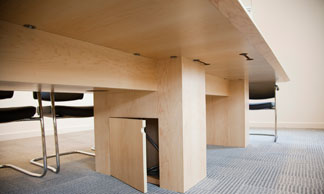
No, that isn’t a Hobbit-hole. That secret compartment is strictly for your cable stash. You’re going to need a lot of cables.
How many is a lot? 3? 5? 7? Well, do you know which video outputs your end users have on their laptops? HDMI? VGA? mini DisplayPort? If they bring their own laptops, you’ll have no way of predicting what their video output requirements will be, so you’ll want to prepare for every possible contingency. You’ll also want to give your end users access to a power supply cord, USB cord, and, in case they want to charge their iPhones, a lightning cord.
To run all these cables from the connectivity box to the TV in a way that’s pleasing to the eye, you’ll want to hide the cables under the carpet, behind the baseboards, and behind the wall. Doing all that in less than 24 hours is perhaps possible in theory, but you’ll be cutting it close.
Luckily, there’s an easier alternative.
As soon as cables leave the picture, you don’t have to worry about connectivity boxes or secret compartments, and can purchase a desk that looks like this:
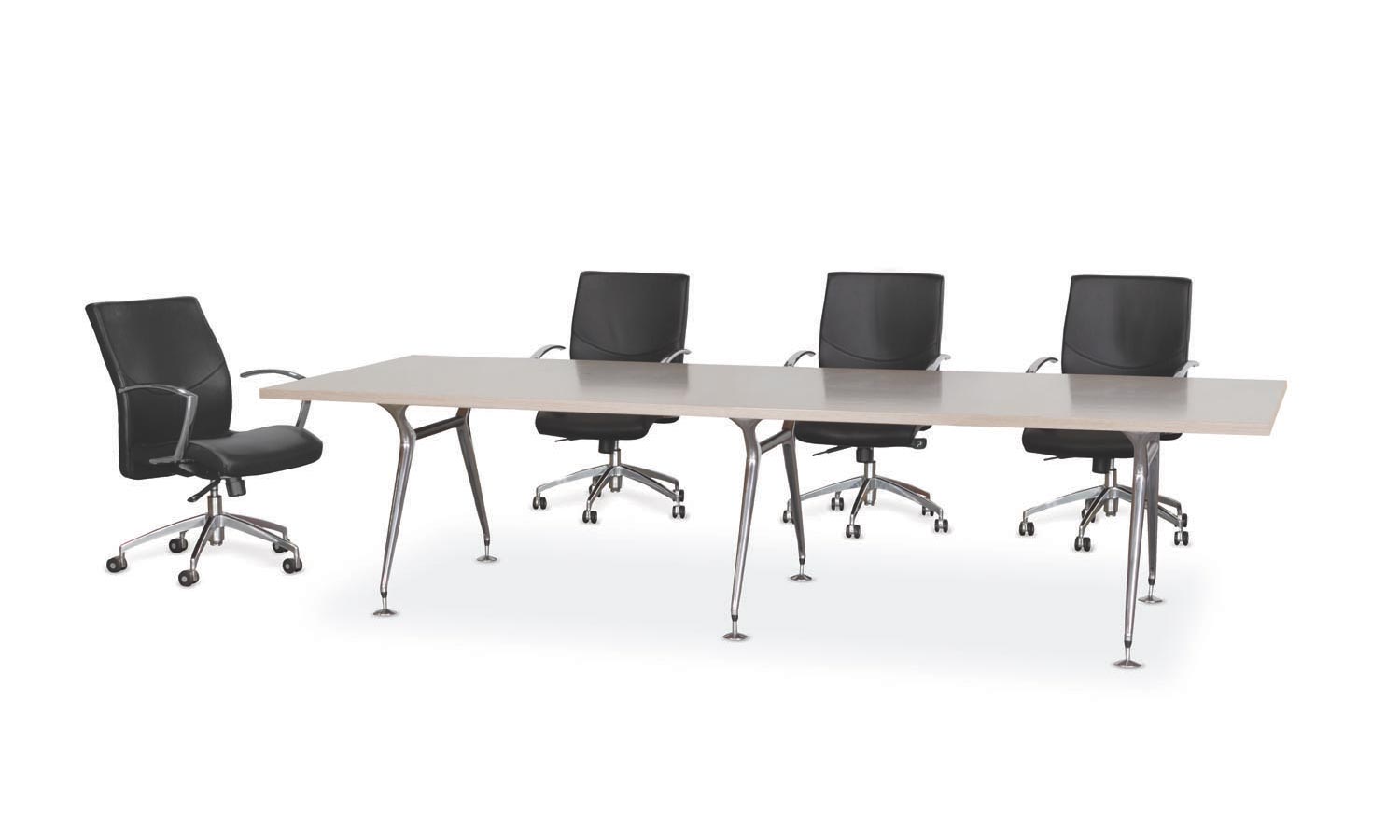
Not only are these desks more elegant, they’re also super easy to install. If it takes you more than 20 minutes, you may want to contact your local authorities because whoever hired you is clearly violating child labor laws.
So how do your end users connect their laptops to the TV or projector without wires?
Short answer: Use a wireless presentation system.
A wireless presentation system takes your IT department 10 minutes to setup. If you combine it with the above table, you’re looking at a 30-minute-long setup. That should leave you with about 23 1/2 hours to install your TV/projector and to place the chairs around the table.
A wireless presentation system will also save your end users time as well. When you give them 8 different cables to pick from, it’s going to take them a minute or two to find the right cable. Non-tech-savvy users may find the task so imposing that they’ll call IT to help them out, which will add an additional 10 minutes to the amount of time it takes them to get their presentation going. But with a wireless presentation system, end users can connect their laptops to the screen in just 1 second.
For more information on wireless presentation systems, click here.
ADDITIONAL READING
Top 10 Conference Room Cable Management Fails of 2016
Conference Room Design: A Guide For the Perplexed
Conference Room Schedule Display Solutions: 3 Suggestions
Want to set up a wireless Conference Room?Try Now
Meeting Room Setup in 1 Day
Posted onDon't miss a Story.
Want to set up a wireless Conference Room?Try Now
The rumbling of air vents. The clink of a coffee mug colliding against a table. The sound of distant laughter. These are the things that you’d expect to hear in a cafeteria, not in a conference room. And yet, due to poor microphone placement, these are the sounds that remote workers hear every day during their videoconferencing sessions.
These sounds are also one of the main reasons why meetings run over schedule. When the most common sentence uttered during a meeting is, “Sorry, the air conditioner just kicked in again…can you repeat that?”, it’s unlikely that every item on the agenda is going to be adequately addressed.
Unfortunately, the solution to this problem isn’t as simple as “get a better microphone.” Conference room microphones come in many different styles, and which style is best suited for your room isn’t always clear-cut.
Here are the 5 types of conference room microphones currently available and a brief overview of their pros and cons.
1. Gooseneck Conference Room Microphone
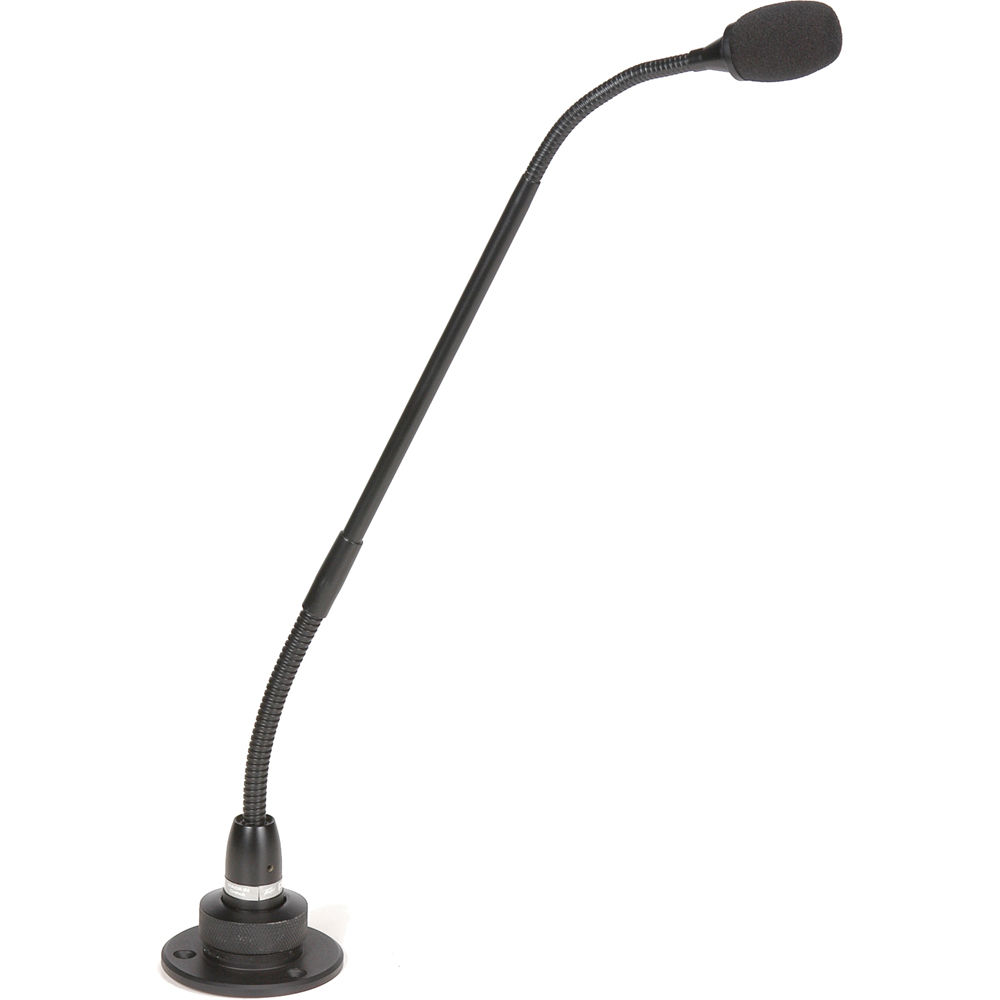
For the best, cleanest sound, the gooseneck microphone can’t be beat. By installing one of these in front of every seat at your conference room table, your days of constantly repeating yourself for the benefit of your remote workers will come to a swift, merciful end.
But gooseneck microphones come with one major downside: They are absolutely hideous to look at. Also, they take up a lot of space. So if you’re an architect and need a large, flat surface to display blueprints, having a large collection of sharp, pointy gooseneck microphones sticking out of your conference room table could be less than ideal.
2. Boundary Button Conference Room Microphone

The boundary button microphone is the gooseneck microphone’s better-looking sibling. The mic is installed directly into the conference room table, so only the top portion is showing. Since it doesn’t jut out of the table and point directly at the speaker’s mouth, the sound isn’t going to be as clear as the gooseneck. But on the plus side, it’s bearable to look at, and you can lay documents over it without damaging them beyond all recognition. (Although the paper may get creased somewhat since the dome of the mic is rarely 100% flush with the surface of the table).
3. Dangling Ceiling Conference Room Microphone
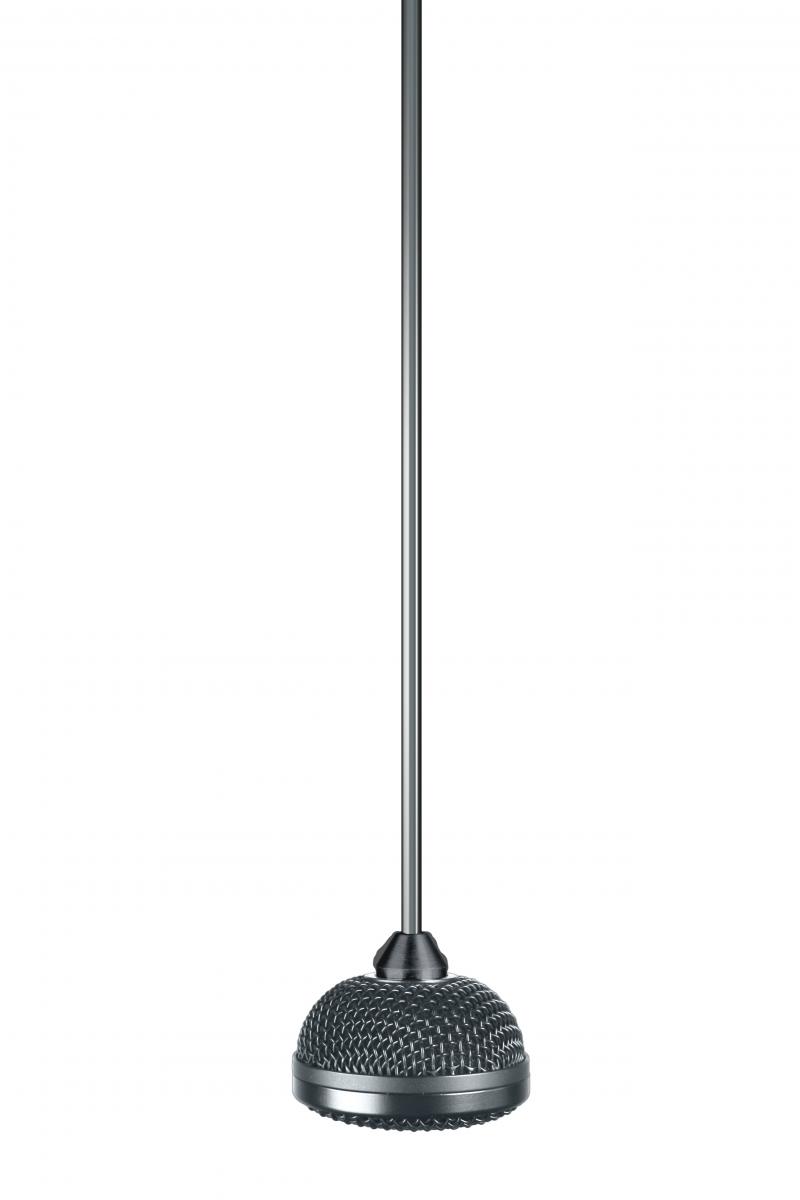
If you absolutely need a perfectly flat conference room table, then installing mics that protrude out of it is going to be counter-productive. This is where your ceiling enters the picture. By installing a dangling ceiling microphone, you can get solid audio while leaving your table free of clutter.
But, like the gooseneck, the dangling ceiling mic is not the most aesthetically pleasing thing to look at. Which brings us to…
4. Mounted Ceiling Conference Room Microphone

Just as the boundary button mic is a less obtrusive version of the gooseneck, the mounted ceiling mic is a less obtrusive version of the dangling ceiling mic. And just as the sound quality of the boundary button mic is inferior to that of the gooseneck, so too is the sound quality of the mounted ceiling mic inferior to that of its dangling counterpart.
So if you require a perfectly smooth table and a somewhat smooth-ish ceiling, the mounted ceiling mic may prove to be a solid investment.
5. Wireless Conference Room Microphone
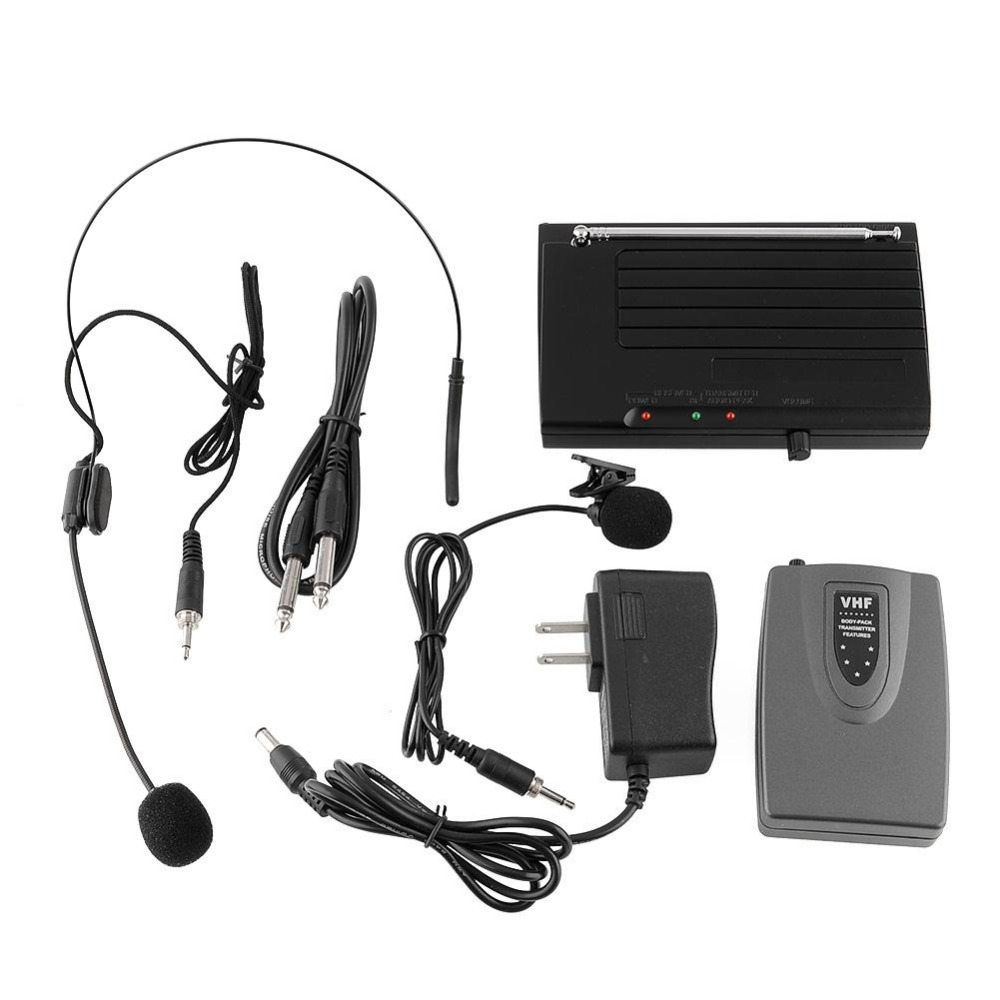 The final (and in some ways best) option is to go wireless. If you dislike the obtrusiveness of the gooseneck/dangling ceiling mics and aren’t satisfied with the substandard audio of the boundary button/mounted ceiling mics, then going wireless is basically the only way to go. It may take your end users a little while to figure out how to work the transmitter and passing the mic around from person to person may not be the most efficient way to conduct a meeting, but if you’re determined to get amazing audio without compromising the aesthetic look of the room, good like finding an alternative.
ADDITIONAL READING
Conference Room Design: 10 Examples Worth Studying
AV System Integrators: Are They Really Necessary?
Conference Room Cable Management Checklist
Don't miss a Story.
Want to set up a wireless Conference Room?Try Now
When it was first introduced in the 1970s, videoconferencing was considered an epic blunder. Why it failed to take off back then is hardly a mystery: The initial systems were expensive, difficult-to-operate, and since only a few hundred of them existed, the number of people you could connect with was extremely limited. With no serious competition to speak of, the telephone—a cheap, easy-to-use device that can connect you with anyone—maintained its stranglehold on the communications industry for the next four decades.
But now that most laptops come with built-in webcams and remote working is becoming increasingly common, videoconferencing is finally giving the telephone a run for its money. With a vast range of options to choose from, it’s worth taking the time to find a provider that caters for your every need. Here are four areas that demand particular attention.
WHAT TO LOOK FOR IN A VIDEOCONFERENCING SOLUTION:
Video & Audio
This should go without saying, but when looking for videoconferencing software, video and audio capabilities should be at the top of your list. Look for a program with high-quality video which allows you not only to see the people involved in the meeting but also allows you to use aids such as notes, any documents that might need to be referred to, or any other important item that might need to be shared. As far as audio is concerned, users will want to be able to hear everything perfectly, eliminating the risk of misinterpretation or misunderstanding. You may also want to look into recording functions that allow you to save all of the video and audio from a meeting that can then be referred back to at a later date.
Integration & Interface
You need to make sure that all of your existing software will be able to work seamlessly with your videoconferencing platform. Hardware such as webcams and microphones will need to be 100% compatible with your desired program, allowing you to use the software to its full potential. You will also want a platform that is easy to use a with clear menus and highlighted features, ensuring all members of your team can collaborate with ease at all times.
Customer Support
Often overlooked when investing in new technology, the customer support service you receive with your software is paramount. Imagine you’re videoconferencing with a client and the software freezes up just as you’re about to finalize a deal. This could cause drastic consequences for you and your team, so it’s crucial that you know exactly what to do and who to contact in order to get you back up and running as soon as possible.
Value For Money
As with any investment, it pays to shop around and be smart. It’s important to make sure before you go all out and spent a large fortune on top of the range software, make sure you are buying exactly what you need for your situation and a brand that is trusted and guaranteed. With the videoconferencing industry taking off around the world, there are more options than ever before, just make sure you are purchasing from a legitimate provider.
ADDITIONAL READING
AV System Integrators: Are They Really Necessary?
7 Must-Have Video Inputs For Your Conference Table Connectivity Box
Conference Room Schedule Display Solutions: 3 Suggestions
Don't miss a Story.
Want to set up a wireless Conference Room?Try Now
Previously on this blog, we looked at the best conference room TVs and best conference room projectors of 2017. But one thing we haven’t addressed yet is which is the better solution. So if you have a large empty wall in your conference room and can’t decide if you want to fill it with a TV or a projector screen, this blog should help you make up your mind.
Projectors: Pros
If your conference room is exceptionally large, a 60-inch TV just isn’t going to cut it. Even a 100-inch TV screen—pretty much the largest size that’s commercially available—may leave some people straining their eyes. This is where a projector will come in handy. Some models are capable of projecting onto a 300-inch screen without compromising the image. That’s roughly the same size as your local multiplex’s smallest screen, so even if all your end users forget their glasses at home, you’re unlikely to hear anyone complain that the screen is too small.
And if you need a large image, projectors will also save you money. A 100-inch TV comes with a price tag of $60,000. But a projector capable of filling up a 300-inch screen can be purchased for somewhere between $5000 (high end) and $27,000 (extremely high end).
Companies that use video to woo clients will find a high-end projector especially useful. A sales pitch that involves a video presentation is going to carry far more oomph on a giant screen with a 4K projector than on a TV.
Projectors: Cons
The major drawback of a projector is that the bulb has the lifespan of a fruit fly. If your end users are forgetful and leave the projector running overnight, you could be replacing that bulb fairly often. All those replacement bulbs are going to add up quickly.
Do you have a speaker system to go along with the projector? If not, you may want to get one. The built-in speakers on projectors are notoriously bad.
And if you use your display mainly for PowerPoints, a 300-inch projector screen isn’t going to make those pie charts any more visually compelling.
TVs: Pros
For smaller conference rooms, a 60-inch display is really all that you need. Most business meetings are attended by 8 people or less, and it’s difficult to imagine a scenario (apart from sales pitches) in which an 8-person meeting would require a 300-inch screen.
Since TVs have a longer lifespan than projectors, you don’t have to worry about turning them off after every meeting, which means that you can use them for digital signage. If you’re going to pay a few thousand dollars for a screen, you may as well get the most out of it, and one way to get the most out of it is to use it to display the conference room schedule, company notifications, or promotional photos/videos when meetings aren’t in session. After all, you don’t cover up your paintings with cloth when you’re not in the room, so why leave the TV off?
TVs: Cons
As stated above, good luck finding a 300-inch TV.
Conclusion
Whichever display you ultimately decide on, always remember: Your end users are going get frustrated if it takes them 5 minutes to connect their laptop to it, and if you rely on a cabinet full of cables and adapters (HDMI, VGA, mini DisplayPort, etc) to solve your connectivity issues, a 5 minute set-up time is going to be common. We recommend looking into a wireless presentation solution instead.
ADDITIONAL READING
AV System Integrators: Are They Really Necessary?
Wireless Conference Rooms Vs. Cabled Conference Rooms: Which Has the Better ROI?
Conference Room Cable Management Checklist
Don't miss a Story.
Want to set up a wireless Conference Room?Try Now
The traditional way to display your conference room schedule is to grab a post-it note, write “RESERVED!!!” on it, and stick it on your conference room door.
A few companies have innovated on this practice, replacing the post-it note with a proper sign-up sheet that lists out all of the available time slots. Some have even gone so far as to attach a pen and string to the schedule, making the sign-up process that much more convenient.
While both of these methods do a decent job of letting people know when the meeting room is booked, neither is fool-proof. If a meeting is canceled, for instance, a schedule that’s been printed on paper is not going to automatically update itself. And in the off-chance that someone actually remembers to cross out their booking, it’s unlikely that the people who are next in line for the conference room would notice.
All of this can be avoided with a centralized electronic booking system which allows you to use an iPad or tablet as a conference room schedule display. Here are the 4 top booking systems currently on the market.
Conference Room Schedule Display Solution #1: Teem
Formerly EventBoard, Teem is everything you need in a conference room schedule display solution and much, much more. In addition to providing a centralized dashboard, Teem also provides a LobbyConnect Visitor Management System and a feature called Flightboard which—just like an airport flight monitor—allows you to check the status of all of your company’s conference rooms in one glance.
Oh, and it also integrates with just about every program imaginable (Office 365, Exchange Google Apps For Work, Slack, HipChat, etc) and provides detailed analytics that will help you plan your meetings better.
Conference Room Schedule Display Solution #2: Robin Powered
By introducing Bluetooth Beacons into your workplace, you can easily keep track of who’s in which room. It may seem a little Orwellian at first, but it makes booking conference rooms a breeze.
Basically, all you have to do to book a conference room is walk into it. The Beacon will detect your presence and then update the system automatically. A simpler solution is difficult to imagine.
Conference Room Schedule Display Solution #3: RoomWizard
Steelcase isn’t just a furniture manufacturer. They also produce meeting room software too. So if you’re renovating your conference room and want new furniture and a fancy conference room schedule display, you’ll only have to make one phone call.
Conference Room Schedule Display Solution #4: Workscape

Workscape uses smart sensors that can detect whether or not your meeting room is empty or full. If your meeting is canceled at the last minute, there’s no need to update the schedule manually. The smart sensors will detect that no one is in the room and update the schedule automatically.
Conclusion
If you’re thinking about modernizing your conference room schedule display, you may also want to think about modernizing other aspects of your conference room as well. By switching to a wireless presentation solution, for instance, you can save your end users the hassle of sorting through a tangled web of HDMI, VGA, mini DisplayPort cables and adapters every time they want to connect their laptop to the conference room TV or projector.
For more on the benefits of wireless presentation devices, click here.
ADDITIONAL READING
Conference Room Technology: 5 Investments You Should Make
AV System Integrators: Are They Really Necessary?
Conference Room Design: A Guide For the Perplexed
Don't miss a Story.
Your department has just been put in charge of renovating each of your company’s 10 conference rooms. New displays, new speakers, and new connectivity hubs will all be required. What do you do? Do you hire AV system integrators to do the job for you? Or do you attempt to do the job yourself?
For the absolute best results, hiring an expert is usually the way to go. Someone who has spent their entire life practicing something is usually going to do it better than someone attempting it for the first time. Anyone who has ever attempted to install a new bathroom sink can testify to this.
But is hiring an expert always necessary? Here are three reasons why hiring AV system integrators may be more hassle than it’s worth.
AV System Integrators: A Costly Solution
4K TVs and projectors are a lot cheaper than they used to be, but they’re still fairly expensive. So right from the outset, this project is going to cost tens of thousands of dollars. To pay a contractor’s salary on top of that will send the costs up significantly.
Now, if you’ve chosen to run wires from the conference room TV to a connectivity box in the center of the conference room table, then letting costs run that high is fully justified—installing HDMI, VGA, and mini DisplayPort cables in a way that’s seamless is a task which requires years of study, and the expertise of an AV system integrator will no doubt come in handy.
But we live in the year 2017, and connectivity boxes are borderline obsolete. Wireless solutions are readily available, and they only take 10 minutes to set up.
AV System Integrators: A Time-Consuming Solution
Since an AV system integrator can’t charge thousands of dollars for 10 minutes worth of work, it’s unlikely that they’ll recommend a wireless solution. Cables, they will insist, are your friend. For a truly stable connection, wires just can’t be beat. (If you’re planning on using your conference rooms to watch The Revenant in 4K resolution at the best possible quality and don’t care about wasting 10 minutes at the start of every meeting troubleshooting connectivity problems, this argument may have some validity).
But installing wires behind baseboards, under carpets, and through walls takes time. Do you really want your 10 conference rooms to be out of commission for a few days when you can easily solve all of your connectivity issues in just 10 minutes with a wireless presentation device?
Hard to Future-Proof Your Conference Room With Cables
Once wires are installed, they’re installed for good. Taking them out requires just as much time and effort as putting them in. And who knows which wires end users will require in 5 years? Thunderbolt 5? USB 7? HDMI 4?
If you decide to hire an AV system integrator to install wires, you should plan on re-hiring them every 5 years. Those wires are not to going to replace themselves.
A wireless presentation solution, in contrast, is only the size of an iPhone and requires only two short cables to install. Taking it in and out of the conference room requires no effort whatsoever.
Conclusion
If you decide to spend thousands of dollars hiring AV system integrators to install wires, prepare to spend thousands more on conference room delays. By offering your end users a wide variety of cables to connect their laptops to the TV with, you are essentially offering them a recipe for confusion. End users who have standard laptops may figure out which cable and which TV settings to use after two or three minutes, but end users with atypical laptops may need to call IT to help them out. The cost associated with all of these delays adds up fast.
A wireless presentation solution, meanwhile, gives end users the ability to connect their laptops to the TV in under 1 second no matter what video outputs their laptops have.
ADDITIONAL READING
5 Must-Have AV Products For Your Conference Room
6 Reasons System Admins Spend More Time in the Conference Room Than the IT Office
Conference Room Cable Management Checklist
Don't miss a Story.
Want to set up a wireless Conference Room?Try Now
One of the oldest jokes in the IT world is that the acronym CIO doesn’t actually stand for Chief Information Officer, but rather Career Is Over. Why the joke has endured for so long is hardly a mystery: Being a CIO is a stressful, difficult job in which failure is the norm. And since boards and shareholders rarely understand what the CIO does, it is also an extremely undervalued position that tends to end up on the chopping block whenever cutbacks are introduced.
But it’s not just boards and shareholders that don’t understand what the CIO does. Sometimes not even the CIO has a firm grasp of what the CIO does. The world of technology evolves at such a rapid pace that keeping up with it requires a commitment to learning that’s almost unthinkable in any other profession.
Luckily, there are dozens of magazines out there to help CIOs avoid this unfortunate fate. Here are 10 of them.
PC Magazine

PC Magazine is the quintessential resource for reviews of technology solutions from hardware to security. While it’s not purely geared towards industry professionals, its Features section can provide insights into the competitive landscapes across the technology sector for personal computing that can be carried over to enterprise solutions.
Macworld
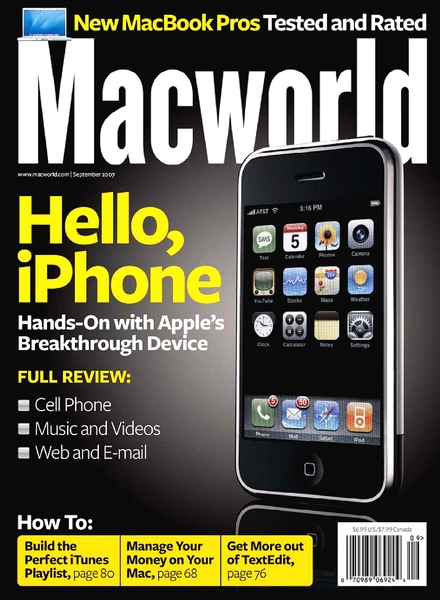
Macworld is a consumer magazine focused on Apple and compatible products and services. Whereas PC Magazine focuses on the broader consumer base, Macworld hones in on the hardware and software nuances of Apple with tutorials, reviews, buying guides, and more. While it is consumer focused, CIO/CTOs can use its content to help colleagues understand technology with less tech-speak.
Wired

Wired Magazine covers how technology connects to various industries from business to entertainment. It’s a mix of consumer and trade publications, giving insights on trends and the impact of technology on individuals and companies.
CIO
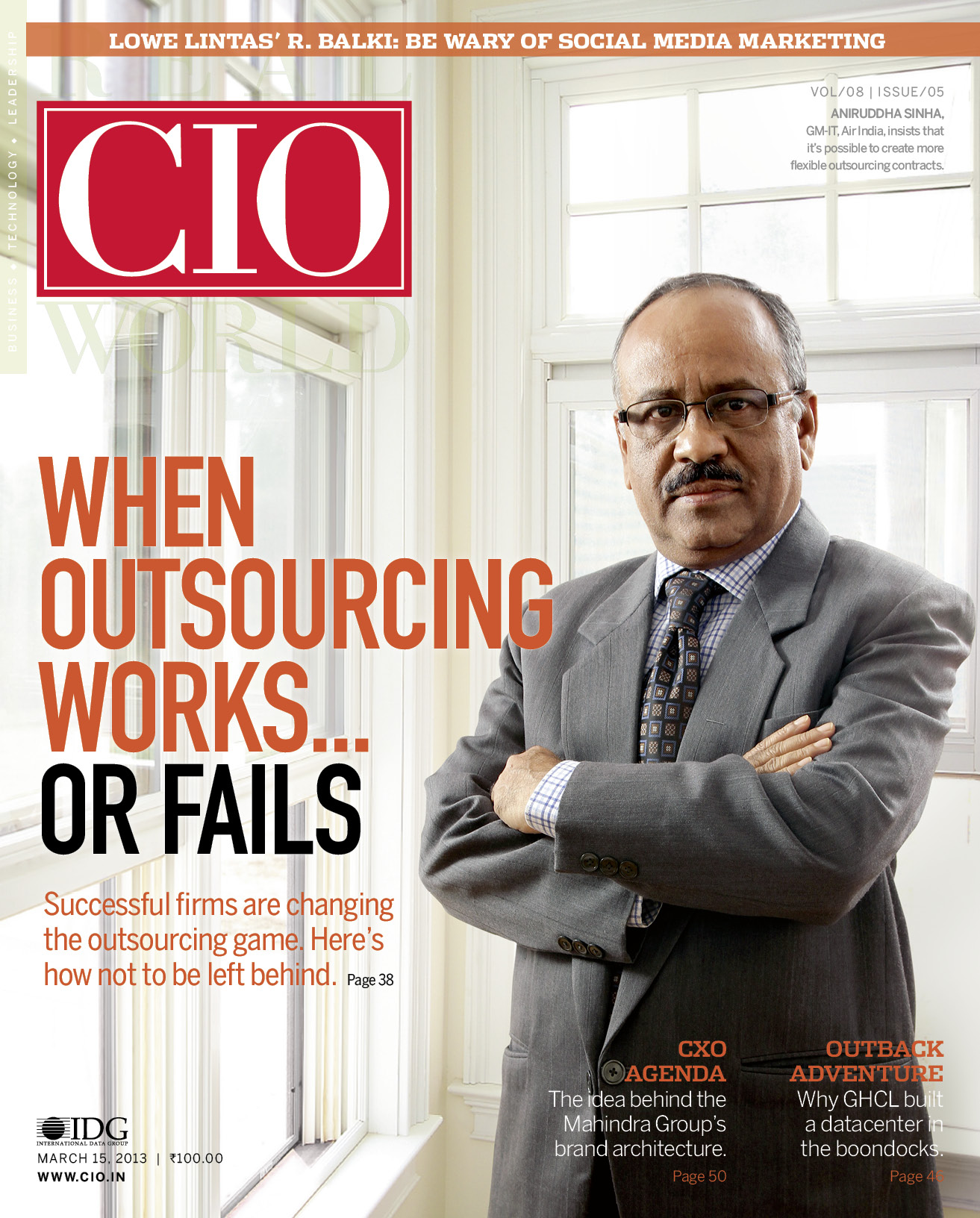
No tech leader’s magazine rack is complete without a copy of CIO on it. Leaders not only need to know about new tools, they need to have the data to back up the viability of technology trends. CIO provides it all through informative features, sharp opinions, and case studies/analytical reports. Its online content, including blogs and videos, act as professional development tools for IT managers.
IT Professional Magazine

The IEEE Computer Society, an offshoot of the Institute of Electrical and Electronics Engineers, publishes IT Professional Magazine to connect with developers and enterprise IT managers. They share informative content on a variety of topics from Internet security to system integration. This publication focuses on peer-reviewed, academic research as opposed to news trends or product reviews.
Harvard Business Review
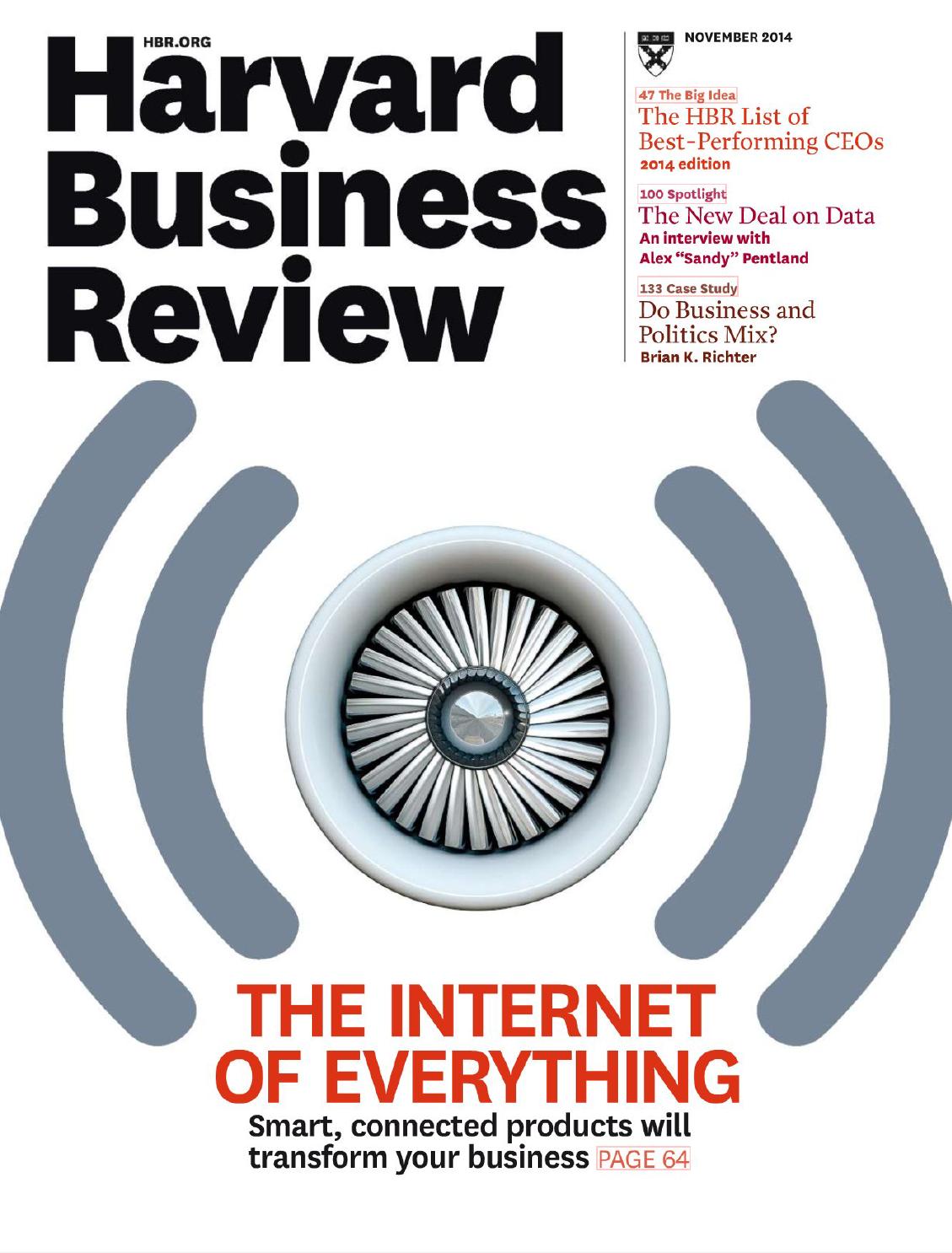
No matter your position in business, the Harvard Business Review is a must read. It contains a balance of news articles, professional profiles, case studies, and academic research from across the globe. It explores business from a variety of angles, including technology, marketing, and human resources. Readers can benefit from the information to develop strategy and communicate with other business areas.
Forbes

Forbes is a classic publication in the business. It is not as academic as the Harvard Business Review, but it digs deep into the business world, no matter the industry. It makes the connection between finance, technology, and efficiency by covering current events, business trends, and top influencers across the globe.
Fast Company

Fast Company makes technology news cutting-edge. It focuses on innovation across industries and hones in on how technology has helped people and business thrive. It looks at how creativity is re-inventing how we view business, each other, and the world around us. For CIO/CTOs, it helps to “humanize” technology and make it accessible to everyone across your company.
MIT Technology Review

What the Harvard Business Review is to the business world, MIT Technology Review is to the IT world. Based out of Massachusetts Institute of Technology, this publication features a mix of academic research and current events to report on how technology is filling gaps from education to business to non-profit (and more). It explores innovation, strategy, and development in technology, specifically to business and IT leaders.
Inc.

Whether your business is big or small, Inc. reports on current events and business trends to help get your company on track. It provides insights and resources through relatable storytelling while demonstrating success through companies embracing technology and innovation. Their profile business leaders and rank top companies to give readers a view of the competitive landscape in business and what’s on the horizon.
All of the above-mentioned publications are available in multiple platforms: print, digital, mobile, etc. Many offer supplemental content in the form of videos and podcasts. You can read in the office or during your commute. All the way, you’re continuing to learn as a leader in business and technology.
Have a favorite publication we haven’t listed? Tell us about it and how it has helped you develop your leadership skills in IT.
Additional Reading
5 Must-Have AV Products For Your Conference Room
AV System Integrators: Are They Really Necessary?
Top 10 Conference Room Cable Management Fails of 2016
Don't miss a Story.
Want to set up a wireless Conference Room?Try Now
Did you know that temper tantrums occur more frequently in conference rooms with yellow walls than in conference rooms with blue walls?
Or that you can download the blueprint for your conference room table online, then send it off to your local 3D printer to be built?
Or that it’s now possible to turn your entire conference room ceiling into one giant LED light?
All of this—and much, much more—is covered in our first e-book, Conference Room Design: A Guide For the Perplexed.
From picking a wall color to picking a font for your conference room sign, no aspect of conference room design goes unaddressed in this document’s 17 pages. So if you’re thinking about renovating your conference room but aren’t quite sure where to begin, or if you’ve been tasked with upgrading your conference room’s AV setup but are worried you might compromise the room’s aesthetic, don’t panic—we have you covered.
Conference room tables, conference room chairs, conference room decor, conference room lighting—if any of these topics confuse you, simply click here, and we’ll get you all caught up in no time.
And if you enjoy references to Street Fighter 2 and the “over 9000” meme in your descriptions of conference room furniture, we have a feeling you’ll find our e-book especially helpful.
A special thank you to National Office Furniture, Opendesk, Teknion, Krost Furniture, Boss Design, Calibre Office Furniture, Trilux, and Philips for making this possible.
ADDITIONAL READING
Conference Room Design: 10 Examples Worth Studying
Top 10 Conference Room Cable Management Fails of 2016
5 Must-Have AV Products For Your Conference Room
Motivation in the Workplace
Don't miss a Story.
Want to set up a wireless Conference Room?Try Now
Q: What’s the difference between a pizza delivery guy and a system admin?
A: Pizza delivery guys deliver pizza to houses, system admins deliver VGA adapters to conference rooms.
This classic IT joke, second only to the one about how CIO really stands for Career Is Over in the repertoire of IT humor, may at first glance seem like a bit of an exaggeration. Surely system admins spend more time on things that are part of their actual job description (like, say, system administration) than on delivering cables and adapters to end users who are having a hard time connecting to the conference room TV or projector?
A few years ago, this may have been the case. But now that everyone brings their own laptops to business meetings, connecting to the TV via cables and adapters isn’t so easy. Laptops come with a wide range of video outputs, smart TVs come with many different video inputs, but sometimes the inputs and outputs don’t match up. This presents a source of confusion for even the most tech-savvy end user. And whenever an end user gets confused by something tech-related, their first instinct is always to call IT.
It’s no wonder then that every system admin, at some point in their career, has toyed with the idea of setting up a tent in the conference room and just doing their work from there.
Here’s a quick overview of the cables and adapters that are responsible for wreaking the most havoc in the conference room, leaving IT departments with no choice but to use their system admin as cable connectivity troubleshooters.
1. HDMI to HDMI Cables

If your goal is to connect a computer to a TV screen or projector through a cable, HDMI cables can be pretty handy. All HDTV’s come with an HDMI input, as do virtually all projectors that were manufactured during the last five years. HDMI outputs are also fairly commonplace on higher-end laptops (although Apple seems to be phasing them out). So if you’re dealing with equipment younger than your average kindergarten student, an HDMI cable should do the trick.
A few things to consider though: Do you buy just one HDMI cable and have your end users share it from a connectivity box in the center of the table, or do you buy multiple HDMI cables and install a connectivity box at each seat? No matter which option you go with, things are bound to get messy, so you may want to look into getting a cable management box to handle the extra slack. And since HDMI cables have a well-known propensity to go missing, you may want to buy a few back-ups.
Is your cable collection starting to get a bit unwieldy? Better brace yourself: It’s about to get a whole lot unwieldier.
2. VGA to VGA Cables

Although HDMI cables have been the standard for the last several years, not all projectors come equipped with an HDMI input. A surprising number of old war horses from the pre-HDMI era still work perfectly fine and are still in widespread use. Likewise, not all laptops come with HDMI outputs. There are still thousands of 2011/12 MacBooks kicking around that may not be able to handle El Capitan, but still run Leopard perfectly fine. Better get some VGA cables to send through that connectivity box (or boxes).
3. VGA to HDMI
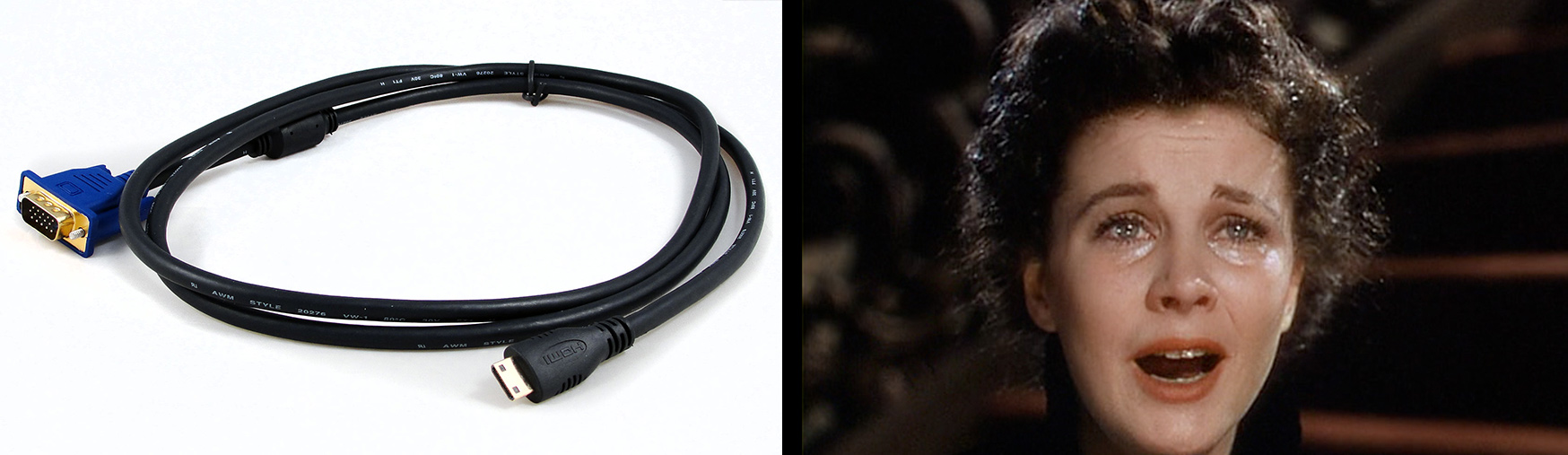
What if the projector you’re using only has an HDMI input but the laptop only has a VGA output (or vice versa)? Don’t worry: Buying a handful of VGA to HDMI cables should solve this problem.
You may want to buy a label maker too: VGA cables look almost identical to DVI cables (the next item on this list), which can cause endless confusion.
4. DVI to HDMI (plus 3.5mm male-to-male audio cable just to be safe)
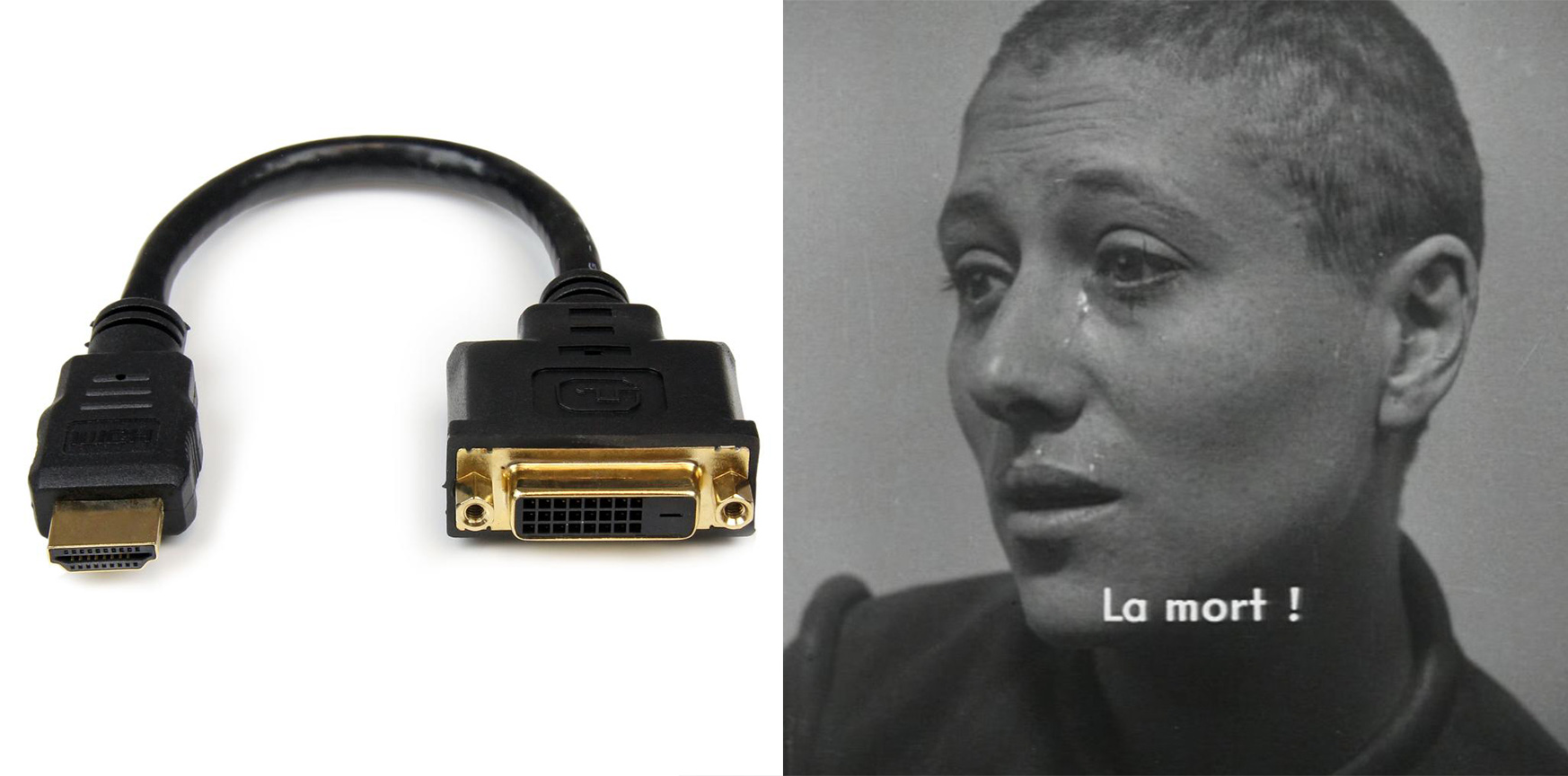
A world in which every single connectivity problem involving laptops, projectors, and TVs could be solved with just three cables would be an annoying one, but at least it would be tolerable. Unfortunately, that’s not the world in which we live. DVI cables also exist, and they can only handle resolutions of 1,920 x 1,200 with no audio, so if your presentation involves sound, a separate audio cable is required. Have fun with that.
5. Thunderbolt to Thunderbolt/HDMI or Mini DisplayPort to Mini DisplayPort/HDMI

Thunderbolt 3 cables have a bandwidth of 5 GB/s and can drive two external 4K displays at 60 Hz. For this reason, they’re pretty much indispensable for people who work with video shot at extremely high resolutions. Will they be useful in the context of a business meeting? Having a couple on standby couldn’t hurt.
And don’t forget to invest in a few Thunderbolt to HDMI/VGA adapters while you’re at it. You never know when those will come in handy.
6. Lightning to HDMI and Lightning to VGA

What if someone forgot their laptop at home and wants to give their presentation through their iPhone? Better stock up on some lightning cables in order to prepare for that contingency. (You may want to buy a few bottles of Tylenol also).
By now, the collection of cables you have in front of you is so big that you may require multiple wheelbarrows to carry them around. Is it any surprise that end users don’t find this web of cables intuitive and need to bring in a system admin to bail them out?
(Editor’s note: To avoid the cable pile-up described in this article, we recommend investing in a wireless presentation system which allows end users to connect their laptops to the conference room screen in 1 second without any hassle. As chance would have it, we offer a free 14 day trial of a wireless presentation system on this very website. Click here for more info).
ADDITIONAL READING
Top 10 Conference Room Cable Management Fails of 2017
Wireless Conference Rooms vs. Cabled Conference Rooms: Which Has the Better ROI?
Conference Room Cable Management Checklist